Meridian user manual
Introduction and terms
Meridian is a scheduler that you run yourself. At fixed times it calls addresses on the network (HTTP jobs) or runs scripts in a place that has been approved for this (Shell jobs). Afterwards it records what happened and tells you if something goes wrong. This chapter explains how the interface is laid out and which terms come up everywhere. The individual pages are covered in the following chapters.
This manual is for people who use Meridian: creating jobs, looking at runs, managing users and permissions. How Meridian is installed, backed up and updated is described in the operations manual (docs/BETRIEB.md).
The most important terms
| Term | Meaning |
|---|---|
| Job | A scheduled task with a name, a type, a schedule and a target. Each job belongs to at most one category. |
| Type | A job either calls an address (Call an address (HTTP)) or runs a command (Run a command (shell)). You cannot change the type after you create the job. |
| Run | A single start of a job. A run has a trigger (schedule, manual, retry or test run), a state and an output. |
| History | All earlier runs, newest first. There is the history of a single job and the History page for all jobs. |
| Schedule | When a job runs, as a cron expression with a time zone. |
| Category | A group of jobs, monitors and status pages. Permissions are granted per category. |
| Role | A set of permissions. The default roles are Admin, Operator and Beobachter (observer). |
| Channel | A way for Meridian to notify you, for example email or ntfy. |
| Monitor | A check from the outside (address, port, ping) or an expected sign of life from a script. |
States of a run
A run is waiting (queued for the next tick), running, successful or failed. It can also have time limit exceeded, been cancelled or been skipped (for example because the job was still running). You can find more in the chapter Runs and history. The colours are the same everywhere: green means good, red means error, yellow means “now” or “running”.
How the interface is laid out
Meridian has two parts: the menu on the left and the page you are working on on the right. On a phone, you open the menu with the Open menu button at the top left.
The menu has four groups:
| Group | Places |
|---|---|
| Operations | Overview, Jobs, Automations, History |
| Observe | Statistics, Monitoring, Status pages |
| Administration | Users & roles, Categories, Audit log, Settings |
| Account | My account, Manual |
A place only appears if your role may use it. If a place is visible but grey and marked No access, you do not have the permission for it. Two people with different roles therefore see different menus. A small dot next to Settings shows that an update is ready.
At the bottom of the menu you see your name and your role, the colour scheme switch (Dark or Light) and the Sign out button. You change the language with DE and EN at the top right of every page. In the Account group, next to My account, you find the entry Manual. It opens this manual in a new tab, in the language you chose for the interface.
Above each page there is a small line with the purpose of the page, and the page title. If you lack the permission for an action, Meridian hides the button. This is only for convenience: the server checks every permission again on its own.
Roles and permissions at a glance
What you may see and change depends on your roles. Each role applies to all categories or only to selected ones. The three default roles:
- Admin always has all permissions, for all categories.
- Operator may view and run jobs, edit HTTP jobs and edit status pages.
- Beobachter (observer) may view jobs, runs and history, and nothing else.
Permissions that run commands or weaken protection are called dangerous. They apply only to all categories, never to a single one. The permissions in detail, and how to create your own roles, are described in the chapter Users and roles.
Secrets stay secret. Meridian stores addresses with credentials, headers, bodies, scripts and passwords in encrypted form. You enter them, but you never see them again. If you want to change a value, you replace it. At most, Meridian shows that a value is set. This applies to administrators too (only an administrator can deliberately switch on an exception under Settings).
How to get started
- Sign in (Sign-in and My account) and protect your account with two-factor sign-in.
- If needed, create a category.
- Create an HTTP job and start it with Test run.
- Set up a channel so that you are told about failures.
- Look at the overview to see whether everything runs in rhythm.
Sign-in and My account
This chapter shows how to sign in, change your password, switch on two-factor sign-in and keep an eye on your sessions. Everything that concerns your own account is on the My account page (menu, group Account). You do not need any special permission for it: every signed-in user manages their own account.
Signing in and signing out
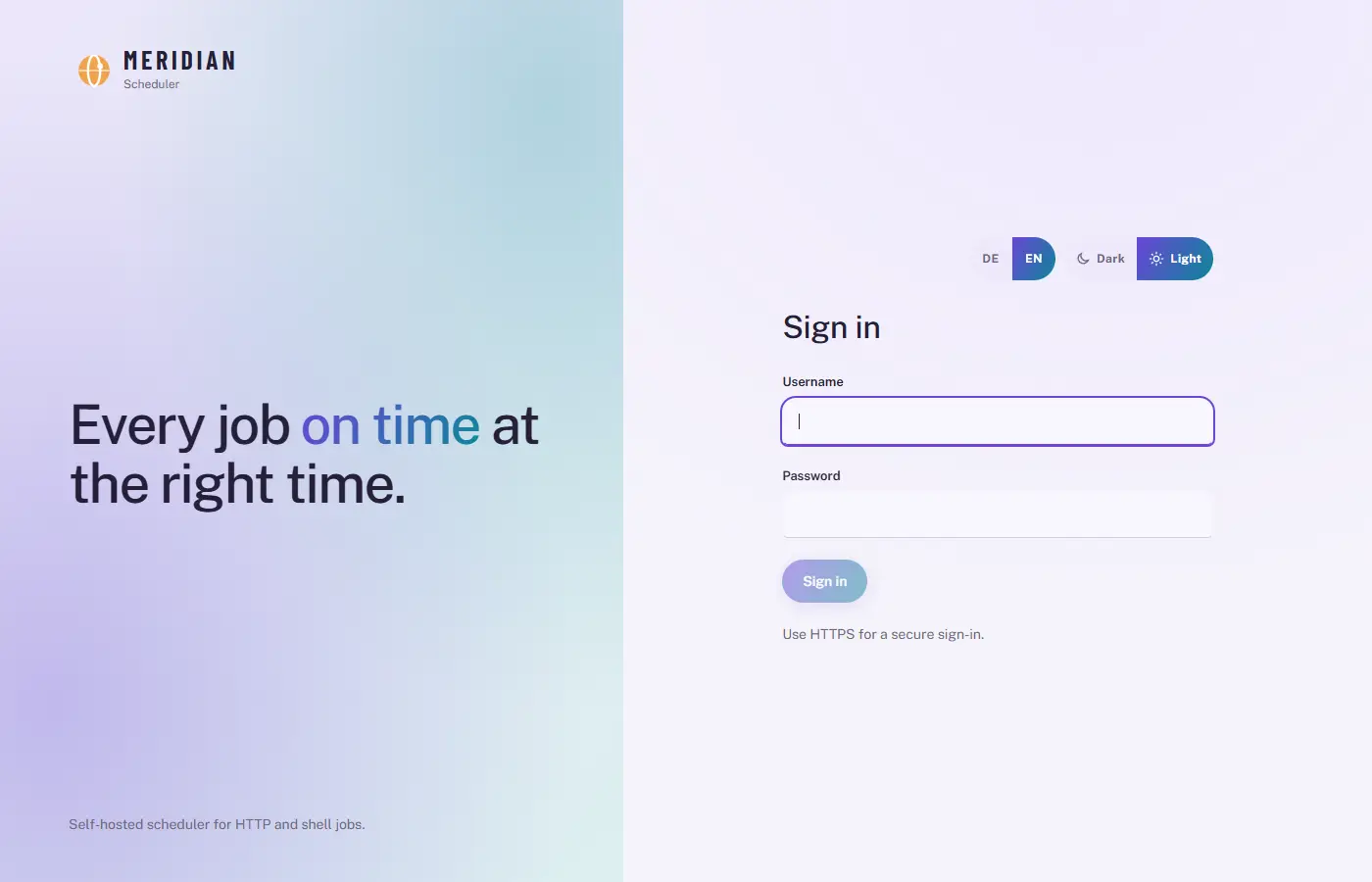
- Open the address of your Meridian. If you are not signed in, you see the sign-in page.
- Enter your Username and your Password and click Sign in.
- If you have switched on two-factor sign-in, the Second factor page asks for a code. Enter the 6-digit code from your authenticator app or a recovery code (example:
123456orABCD-EFGH-JKLM) and click Confirm. With Back you return to the password. - After that you land on the overview.
You sign out with the Sign out button at the bottom of the menu. The session is only a cookie that your browser cannot read (HttpOnly). Meridian stores no passwords or access keys in your browser.
Possible problems when signing in:
| Message or state | What to do |
|---|---|
| Username or password is wrong | Check what you typed. After several failed attempts, Meridian locks the username and the address for a while. An administrator can lift the lock at once (Audit log). |
| The browser did not keep the session | Allow cookies for the address of Meridian and try again. |
| Sign-in not possible: reverse proxy not set up | This is an error in the setup of the server, not in your credentials. Tell an administrator. |
| Notice “Use HTTPS for a secure sign-in” | Meridian runs over unencrypted HTTP. This is only acceptable in a trusted home network. |
| Set password | If an administrator gave you a one-time password, Meridian asks for a password of your own the first time you sign in (see below). |
The My account page
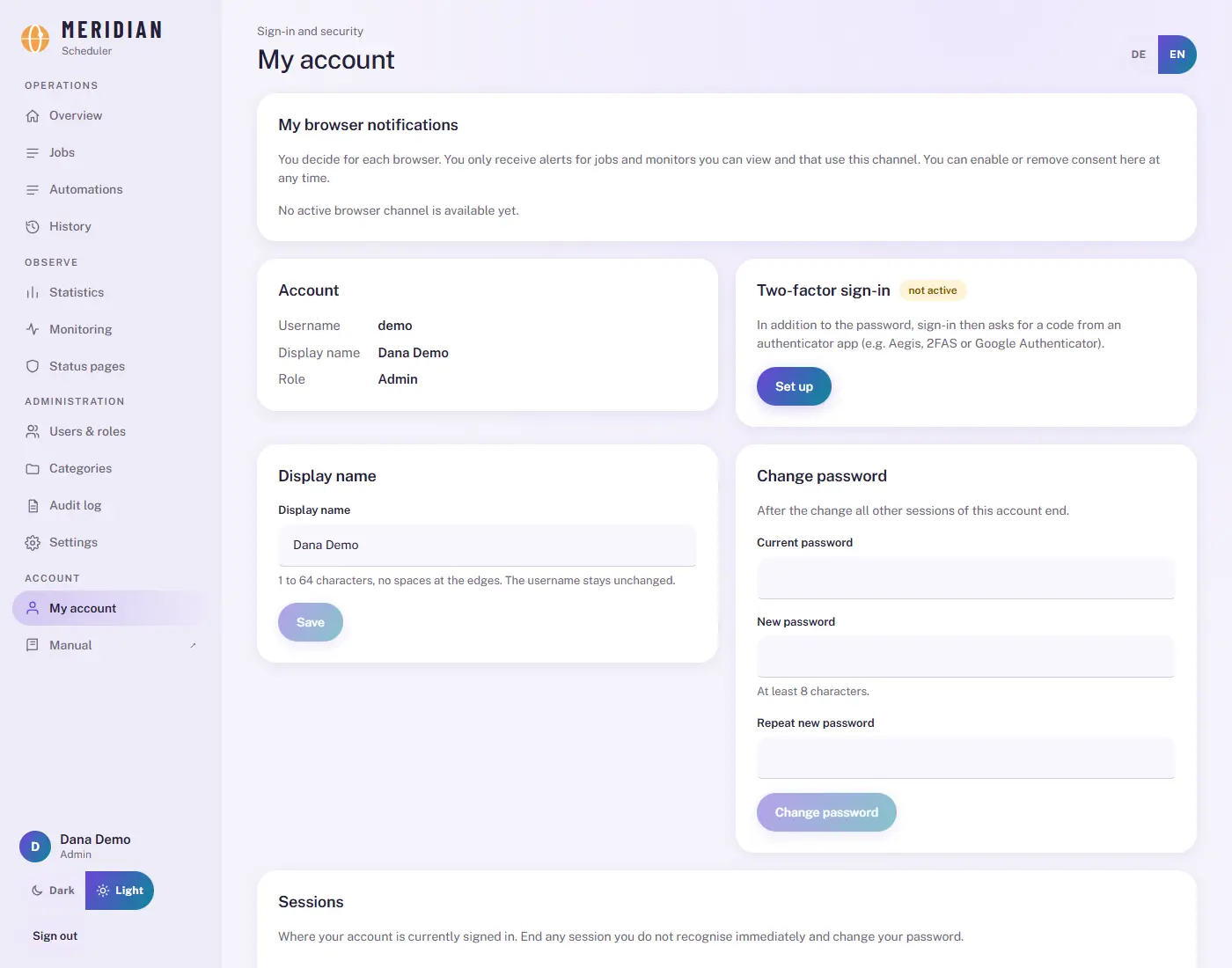
The Account card shows your Username, your Role and your Display name. You can change the display name (1 to 64 characters, no spaces at the start or end) and apply it with Save. The username never changes.
Language and colour scheme
Meridian is available in German and in English. With DE and EN at the top right you change the language at once; the choice is saved with your account. The colour scheme switch at the bottom of the menu has two values: Dark (the default) and Light. It is also saved with your account, and before you sign in the browser remembers the last choice. Meridian sends notifications in the language set on the channel; if it says Use my UI language, the channel follows your choice.
Changing your password
- In Change password, enter your Current password.
- Enter the New password (at least 8 characters) and repeat it under Repeat new password.
- Click Change password.
After that, all other sessions of your account end. If an administrator gave you a one-time password (see the field One-time password under Set password), you choose your own password the first time you sign in, before you use Meridian.
Meridian stores passwords only as a hash (Argon2id). Administrators cannot read your password either; they can only create a new one-time password.
Two-factor sign-in (2FA)
With two-factor sign-in, Meridian asks for a code from an authenticator app in addition to the password, for example Aegis, 2FAS or Google Authenticator. The state is shown on the Two-factor sign-in card: active or not active. On the overview, a notice with Set up now reminds you as long as it is missing.
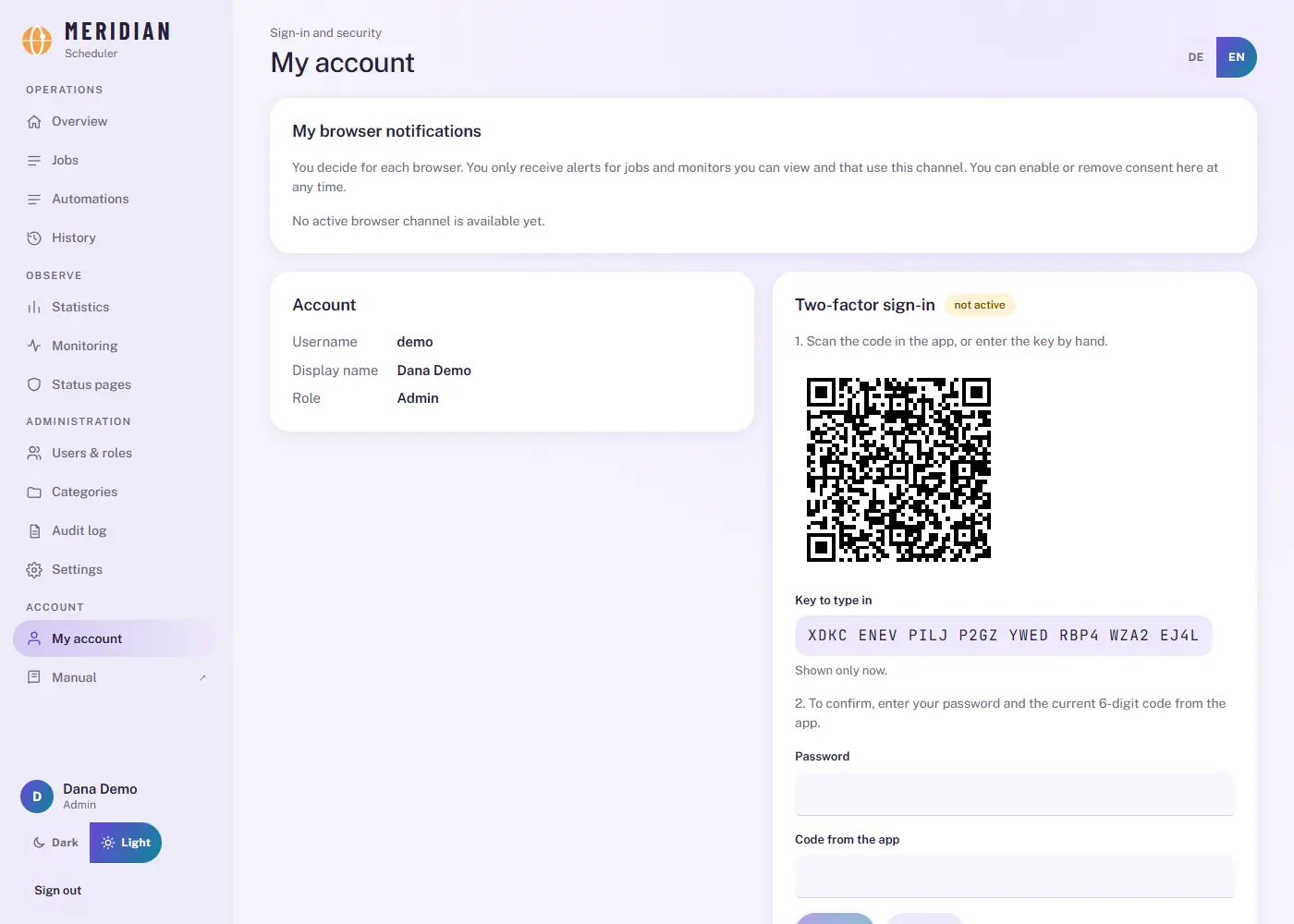
- Click Set up.
- Scan the QR code with the app or type the Key to type in by hand. The key is shown only now.
- Enter your Password and the Code from the app and click Enable. Cancel leaves the setup without any change.
- Meridian now shows the Recovery codes. They appear only this one time. Each code works once and replaces the app code if you lose your device. Keep them apart from your password (for example in a password manager); Copy to clipboard helps with that. Tick I have stored the codes safely., then Done becomes available.
To switch it off, you need your password and a valid code (from the app or a recovery code), and you click Turn off. If a user has lost both the device and the codes, an administrator can reset the 2FA (Users and roles).
Sessions
The Sessions card shows where your account is currently signed in: Browser, Address, when you Signed in and when the session was Last active. Your own session is marked this session. If you do not recognise a session, click End and change your password. End all others ends all sessions except your current one. Both ask first.
API access (access tokens)
The API access card lets scripts and programs fetch jobs, runs, the overview and statistics (and, with Read and write, also create, change and start jobs). A token has exactly the permissions of its user, never more.
- Click Create token, give it a Name (“What the token is for, e.g. Grafana”) and choose the Scope (Read only is recommended) and the Validity.
- Confirm with your password and click Generate token.
- Meridian shows the new token only now. Copy it and click I have saved it, hide.
In the Access tokens list you see Name, Scope, Expires and Last used. With Revoke, programs lose access at once. A token never works for the account, settings, users and similar areas.
Browser notifications
If an administrator has created a channel of the type Browser, the card My browser notifications appears for you. You decide for each browser yourself: click Connect this browser and confirm the permission in the browser. You trigger a test message on the channel. Browser notifications need HTTPS and a supported Chrome or Firefox browser. If you refused the permission, allow notifications in the site settings of your browser and connect it again.
Overview
The Overview is the start page of Meridian. It answers one question at a glance: is everything running in rhythm? You see whether a job needs attention, when the next run is due and how the day has gone so far. You reach it through the first entry in the menu, group Operations. The page shows only jobs and monitors of your categories. If your role may not view jobs, it says “Your role may not view jobs.”
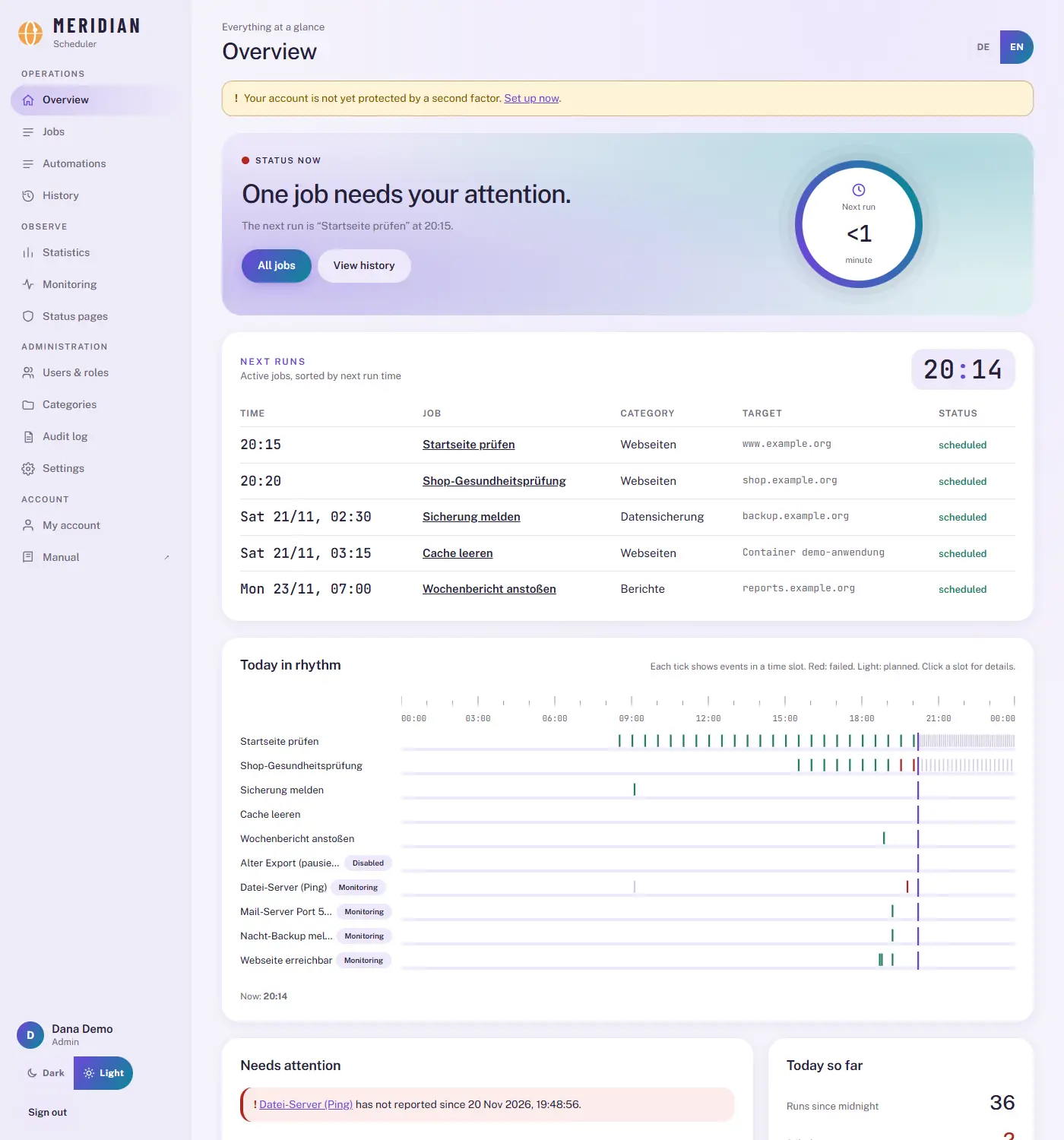
Status
At the top, a large card sums up the Status in one sentence:
- All in rhythm. All active jobs last ran without errors.
- One job needs your attention. At least one job failed on its last run. The View history button takes you to the runs.
- Welcome to Meridian. or Ready for the first job. There is no active job yet. The All jobs button takes you to the job list.
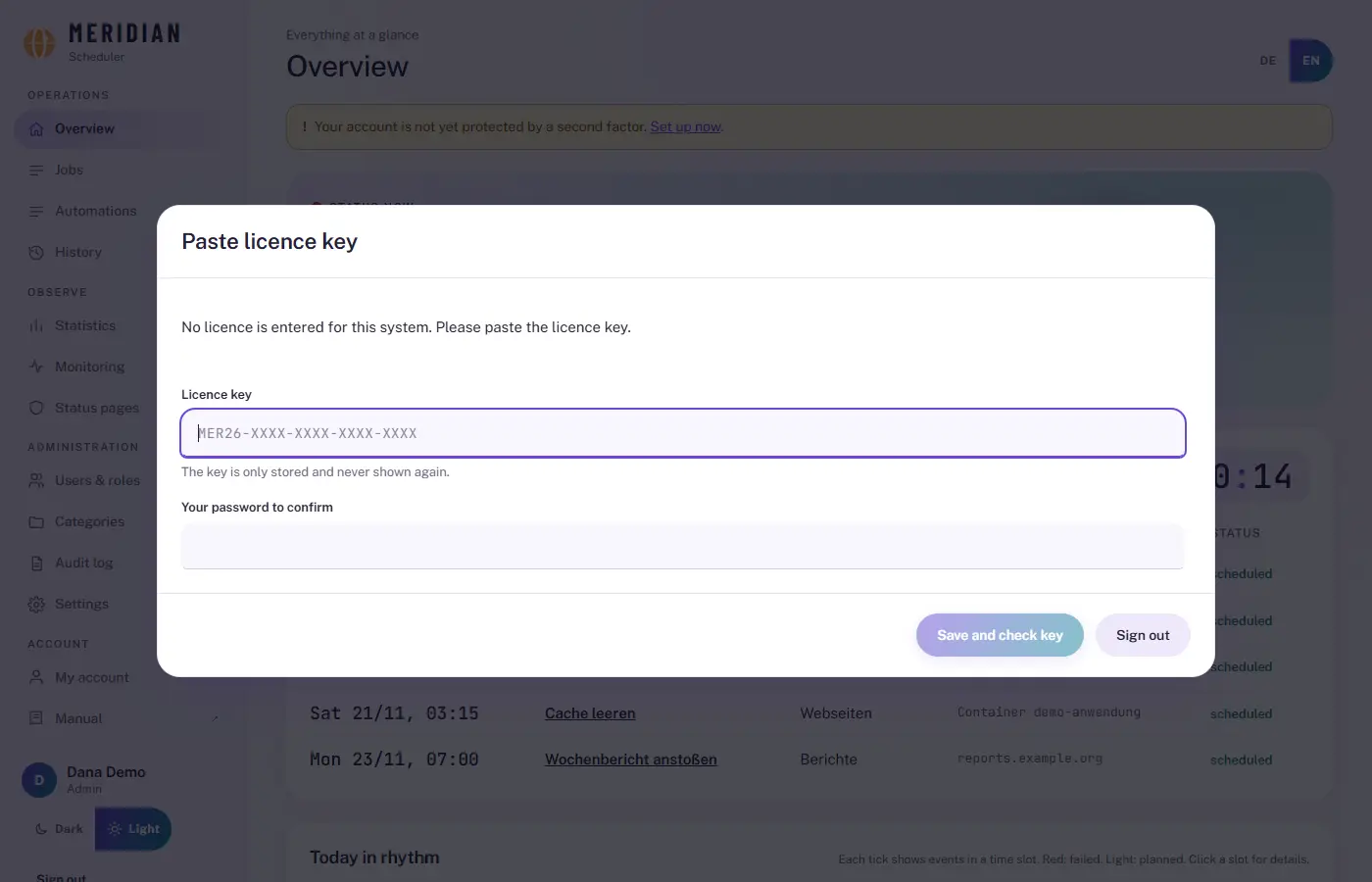
Next to it runs the clock of the computer Meridian runs on, and a ring shows in how many minutes, hours or days the Next run is due. If nothing is planned, it says “No run scheduled”. If you have not yet switched on two-factor sign-in, a notice with the Set up now button reminds you (see Two-factor sign-in).
Next runs
The Next runs board lists the active jobs, sorted by the time of their next run. The columns are Time, Job, Category, Target and Status. A click on the name opens the job. If there are no active jobs yet, the board explains that time, category, target and status appear here as soon as a job has been created and is active.
The rhythm band
The rhythm band “Today in rhythm” shows every job and every monitor as one row across the day. Each small bar stands for a five-minute section: green means runs without errors, red means errors, light means runs that are still planned. A click on a bar opens the history, filtered to that entry and period. This way you spot patterns at a glance: if a job always fails at the same time of day, you see it as a vertical red line.
Needs attention and Today so far
The Needs attention card names the jobs that failed on their last run or exceeded the time limit, each with the time. If nothing stands out, it says “Nothing unusual: all active jobs last ran without errors.”
The Today so far card counts the Runs since midnight, how many of them failed, and gives the average run time.
The overview updates by itself. You do not need to reload the page.
HTTP jobs
An HTTP job calls an address at fixed times and checks the response. You use it to see whether a website or a service answers, to trigger a script on another system (webhook) or to fetch a report regularly. You find all jobs under Jobs (menu, group Operations). This chapter shows the list, how to create a job and the detail page of a job. The fields of the editor are described in the chapter Job editor, the schedule in the chapter Schedules.
Permissions: you may view jobs with the permission View jobs, create, change and delete HTTP jobs with Edit HTTP jobs, and start jobs with Run jobs. You see and edit only jobs in the categories your role applies to.
The job list
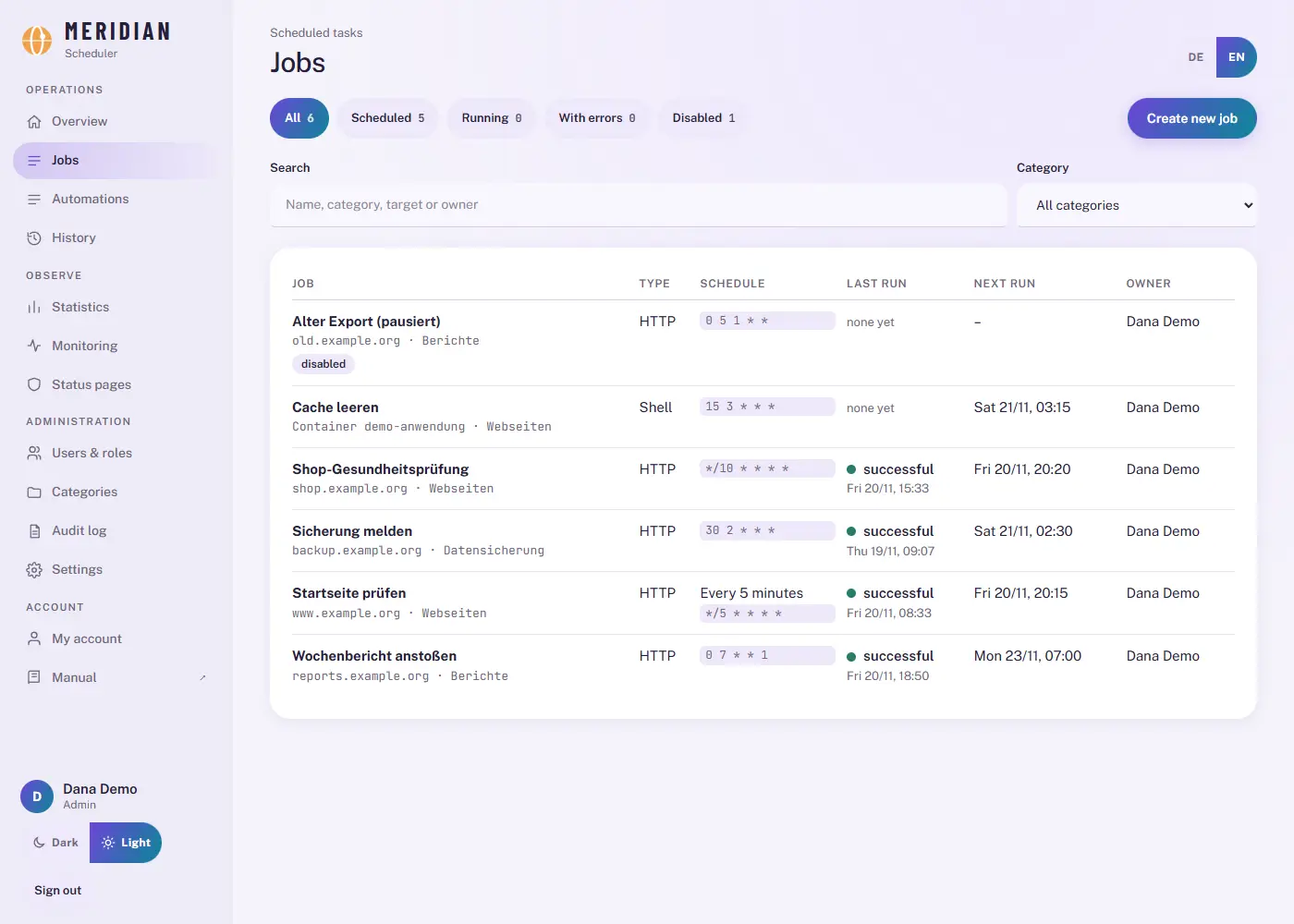
The Jobs page shows the Job list with the columns Job, Type, Schedule, Last run, Next run and Owner. Above the list you narrow it down:
- Search: by name, category, target or owner.
- Category: All categories, one category or No category.
- Filter by status: for example only failed jobs.
You see only jobs in your categories (notice “You only see jobs in your categories.”). The list shows at most 500 jobs; use search or category to narrow it down. A job that is started only by an automation shows the note Automation only instead of a schedule. With Create new job you start a new job.
Creating an HTTP job
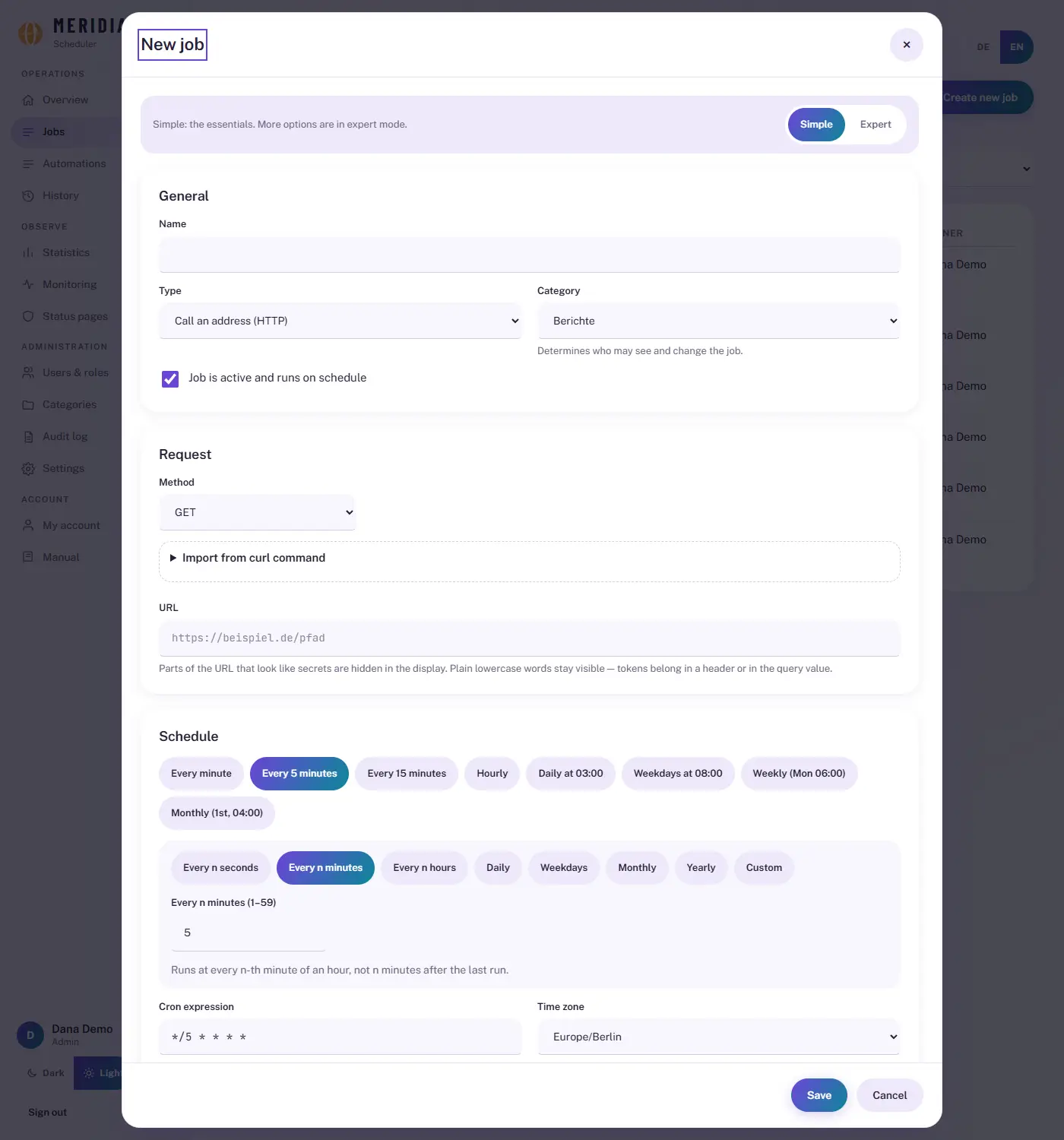
- In the job list, click Create new job. The editor opens as the New job dialog.
- Enter a Name that makes the job easy to recognise.
- For Type, choose Call an address (HTTP). You cannot change the type later.
- Choose the Category. It decides who may see and change the job. With No category, only roles that apply to all categories can see it.
- Choose the Method (GET, POST, PUT, PATCH, DELETE or HEAD) and enter the URL, for example
https://www.example.org/. - Set the Schedule (Schedules).
- Click Save, or Save and test to start the job once straight away.
The editor has two views: Simple shows the most important details, Expert shows all options in tabs. Nothing is lost when you switch. Meridian remembers your choice with your account.
Method, headers and body
The Method decides what the call does: GET and HEAD only read, POST, PUT, PATCH and DELETE can send a Body. In expert mode (tab Advanced, section Headers and body) you can also enter:
- Authentication: Basic (user and password) or Bearer token. Meridian turns this into the
Authorizationheader for you. With Use as header you apply the details. - Header: any further headers as a name and a Value. Add header adds a row, Remove deletes it.
- Body: the content of the request, such as JSON.
If you have a ready-made curl command, for example from the developer tools of your browser (“Copy as cURL”), choose Import from curl command, paste the command and click Apply. Meridian only reads it; nothing is run or sent. What it cannot take over is listed under Not imported.
Secrets in the request. Meridian stores the URL, headers and body in encrypted form and never shows them again. The job list and the job show only a shortened display: parts of the URL that look like secrets are replaced by ••••. Tokens therefore belong in a header, not in the path. If you want to change the request later, choose Replace request: URL, headers and body are then entered again together, and fields you leave empty are empty afterwards. Cancel (keep the stored request) leaves everything as it was.
What counts as success
In expert mode, you decide under Execution when a call succeeds:
- Time limit in seconds: if the server is not finished after this time, the run counts as time limit exceeded. An administrator sets an upper limit (Settings, HTTP jobs).
- Expected status codes: for example
200-299or200,204,301-302. Any other response is an error. - Follow redirects (0–5): how many redirects Meridian follows. Every redirect is checked again.
- Store response in history (max. 64 KB): only a masked, shortened text excerpt is stored. An administrator can switch this on or off for all jobs.
Retries and overlap
- Retries on failure (0–10) and Delay between retries in seconds: if a run fails, Meridian tries again. The delay grows with every retry, up to 3600 seconds. A run counts as failed only when no retry follows.
- If the job is still running: Skip the new run (the appointment is dropped), Queue the new run (it starts as soon as the old one has finished) or Start in parallel.
Waiting times. Runs currently run one after another. A run with a long time limit can hold up other runs. Appointments that become more than 5 minutes overdue because of this count as missed (Missed runs).
The detail page of a job
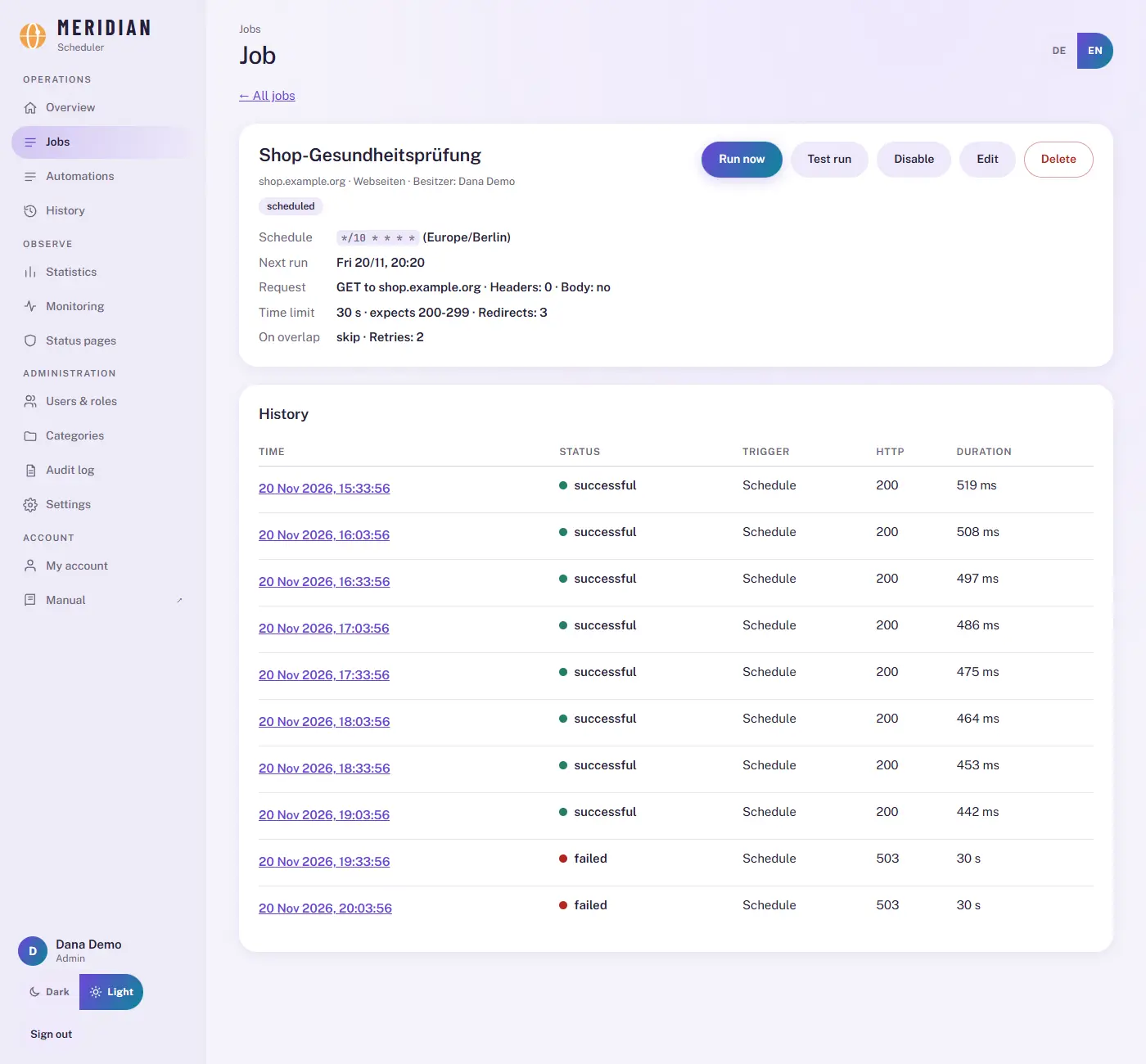
A click on the name in the job list opens the detail page. At the top you see the name and category, and on the right the buttons:
| Button | Effect |
|---|---|
| Run now | Starts a run by hand. Only active jobs can be started this way. |
| Test run | Starts a run to try things out. A test run does not count in the statistics and does not count as the “last run”. |
| Disable / Enable | Stops the job or resumes it. A disabled job no longer runs on schedule; the history stays. |
| Edit | Opens the editor. |
| Delete | Deletes the job together with its history for good, after a confirmation (Yes, delete). This cannot be undone. |
Below that, the page shows the Schedule with the Next run, the Request (as a shortened display, with the note “request set”), Time limit, the status codes it expects, Redirects, Retries and the rule On overlap. Then comes the job’s History (Runs and history). A run you start first appears as a Triggered run and then shows its result as soon as it has finished; the start takes a few seconds until the next tick.
Protection against access to internal targets
HTTP jobs may only call addresses that can be reached from outside. Before every call, Meridian checks the name, keeps the address it found and checks every redirect again. Addresses in private networks, on the computer itself and metadata services of cloud providers are blocked. If a job needs to reach an internal service, an administrator must approve the target explicitly (Settings, Internal targets). Meridian always checks the certificate of the target.
Example: checking a website every five minutes
- Create new job, Name “Check home page”, Category “Websites”.
- Method GET, URL
https://www.example.org/. - In the schedule, use the quick pick Every 5 minutes.
- In the Notifications tab, switch on Notify me when a run fails (Notifications).
- Save and test. On the detail page you see the test run in the history.
Shell jobs and execution locations
A shell job runs a script or a command, for example a backup, a cleanup or a restart. Meridian never runs commands inside itself. It runs them only at an execution location that an administrator has approved beforehand: in a Docker container or on an SSH server. This chapter explains how to create a shell job and which execution locations there are.
Not every system offers shell jobs. Meridian only shows kinds of execution locations that can really be used on your system. The operator of the system sets this up. If there is no execution location, the Execution locations page says that no execution locations are set up on this system and that shell jobs are not available here. Then you cannot create new shell jobs; jobs that are already saved are kept and stay readable.
The kinds of execution locations
| Type | Where the script runs | When it is available |
|---|---|---|
| Docker container | In a running container that an administrator has approved by its exact name. | When the operator has set up Docker access for Meridian. |
| SSH server | On another computer, with a fixed user and a key of its own. | When the operator has switched on SSH for shell jobs. |
| Host profile | Directly on the computer Meridian runs on. | Only on local installations where the operator has switched this on explicitly during setup. |
“Host” does not exist on hosted systems. The Host profile type runs commands with the permissions of the server itself. It exists only on local installations of the operator, when the operator switches it on deliberately during setup. On hosted systems it is never offered, not even to administrators. If you do not see it, that is intended and not an error.
Creating a shell job
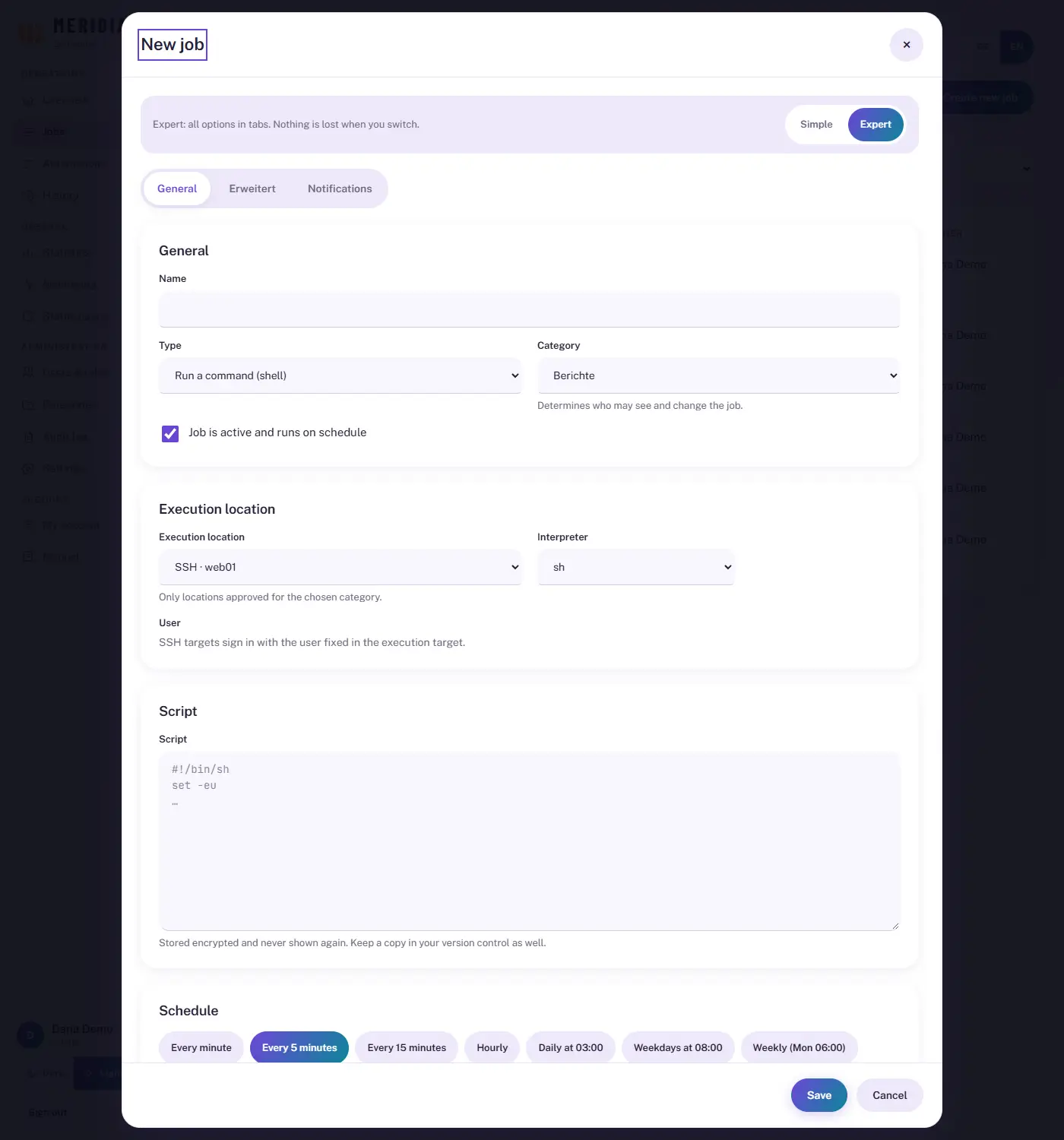
You need the permission Edit shell jobs for all categories. Only someone who may edit shell jobs without restriction may run commands.
- In the job list, click Create new job, enter the Name and choose Run a command (shell) for Type.
- Choose the Category. Only execution locations approved for this category are offered.
- Choose the Execution location. If it says “No execution location approved yet (Settings → Execution locations)”, ask an administrator for the approval.
- Choose the Interpreter (for example
bash). - For a container, you can enter the User in the container (only approved users) and the Working directory (an absolute path inside the container, empty = the container’s default). SSH locations sign in with the user entered for the execution location.
- Enter the Script.
- Set the schedule and click Save.
If the script runs as root, Meridian warns you with “Warning: the script runs as root.” This is only possible if an administrator has explicitly allowed root for the execution location.
Environment variables and script
Never put credentials that your script needs into the script. Use Environment variables instead (section Environment variables: NAME and Value, Add variable). Values should be at least 4 characters long, otherwise Meridian cannot hide them in the output. The script and the values are stored encrypted and are never shown again.
The script cannot be read again after saving. Also keep it in your version control. To change it, choose Replace script: script and environment variables are then entered again together, and fields you leave empty are empty afterwards. Cancel (keep the stored script) leaves everything as it was. The detail page only shows “Script set (content hidden)”. An administrator can switch on the display of stored values in the settings (Job editor); every access is then recorded in the audit log.
Runs of shell jobs show the exit code and the output. Meridian replaces known secrets in the output before it stores or shows it (Runs and history). A run can be cancelled: the process receives a terminate signal and, after 10 seconds, a hard kill.
Managing execution locations (administrators)
You manage execution locations under Settings, tab Execution locations. You need the permission Manage execution locations for shell jobs. The tab is missing if no kind of execution location can be used on the system.
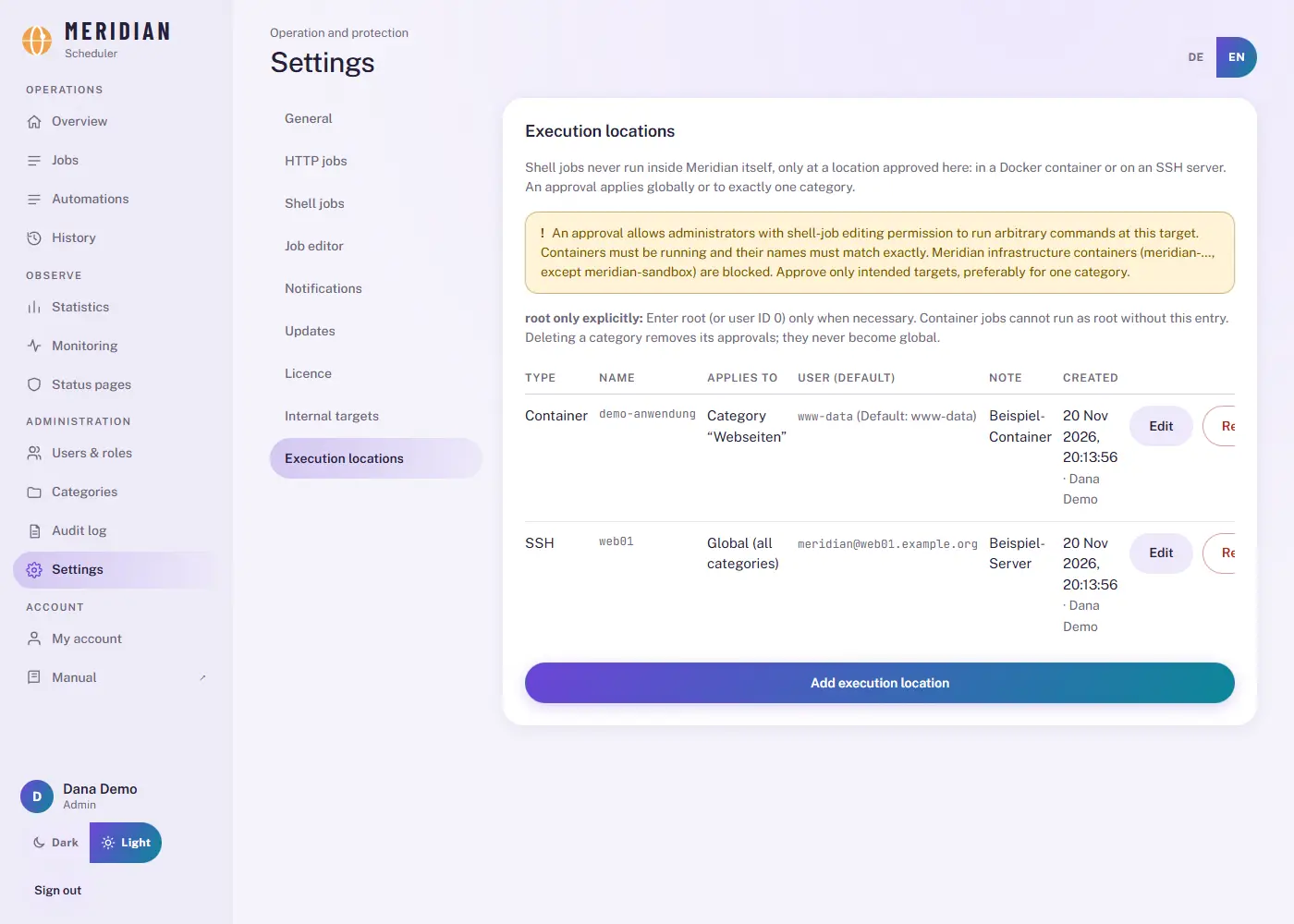
The Approved execution locations table shows Type, Name, Applies to (global or one category), User (default), a Note and when the location was Created. An approval allows administrators with the permission Edit shell jobs to run any command at this location. So approve only locations that are meant for this.
With Add execution location you create a location. You cannot change the type later. You can change or remove a location at any time; jobs that use it fail from the next run on until another one is chosen.
Type Docker container
Enter the name of the container exactly (for example nextcloud). The container must be running. Meridian’s own containers are blocked. Decide who the location Applies to (Global (all categories) or one category), the Default user and the Allowed users (separated by comma or space, 1 to 10 entries, for example www-data 1001). Enter root only if it is really necessary: without this entry, no job can run as root.
Type SSH server
Meridian starts only the SSH client locally and sends the script over the connection. You enter the Name of the SSH target (your own choice, for example web01), the Server (host name or IP address, for example web01.example.org) and the User on the server. There are two different keys that you must not mix up:
- Server key (host key of the target server): It tells Meridian that it is really talking to your server. The easiest way is Fetch server key. Meridian connects only with exactly this key.
- Meridian’s login key: Meridian uses it to sign in to the server. The easiest way is to let Meridian create the key pair (Let Meridian generate the key pair (recommended)). The private part stays encrypted in Meridian and is never shown. After saving, Meridian shows the public part with a ready-made command (Enter the key on the server) that you run on the server as the user who should run the jobs. Alternatively, you paste a private key of your own without a passphrase (Paste my own private key).
For Meridian, use a user with as few permissions as possible, not root. Then click Test run in the job. You confirm SSH locations and root approvals with your Meridian password (Current password). Scheduled jobs then run without asking for the password again.
How the operator switches on SSH for shell jobs is described in the operations manual (docs/BETRIEB.md, “Shell-Jobs auf einem Server per SSH”).
Type Host profile
This type appears only on local installations where the operator has switched on host execution (see above). Host profiles use the fixed user of the host service without signing in; jobs run with its permissions. Creating one requires your Meridian password. On hosted systems this type never exists.
Shell commands in automations
An automation can run a command in a Docker container or, only where allowed, a script on the host (Automations). These actions exist only if the type can be used on the system; an entry that is already saved stays visible.
Job editor
In the job editor you create jobs and change them. It opens as a dialog with Create new job in the job list or with Edit on the detail page of a job (the page is then titled Edit job). This chapter explains the two views and all tabs. What the fields mean for HTTP jobs is described in the chapter HTTP jobs, the fields for shell jobs in the chapter Shell jobs and execution locations.
Permissions: you may change a job if your role has Edit HTTP jobs for its category. Only users with the permission Edit shell jobs for all categories can change shell jobs. If the permission is missing, the editor says “You may not change this job.” or “You may not create jobs.”
Simple and Expert
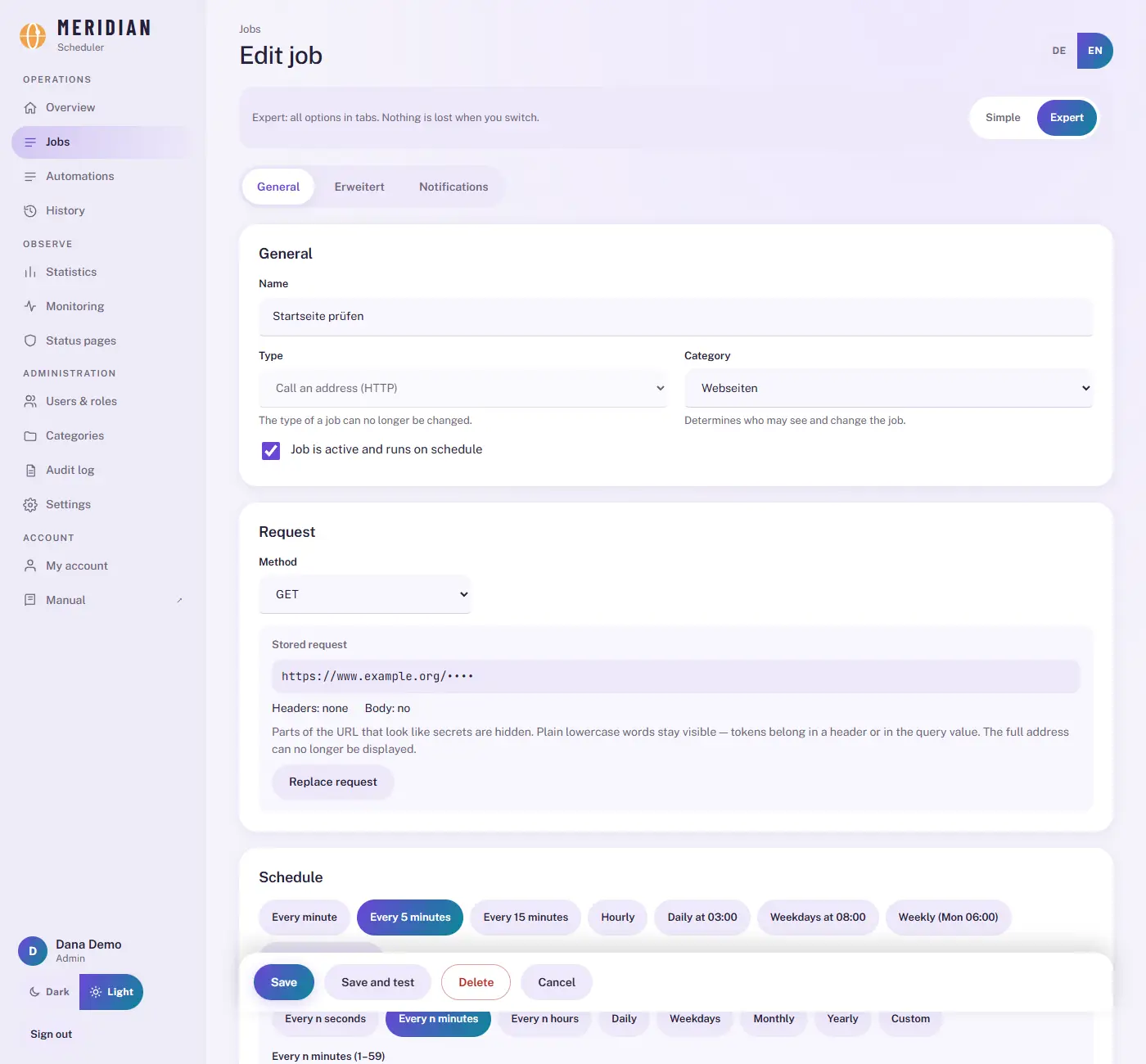
With the Editor view switch you choose between two views:
- Simple: the most important details on one page (name, type, category, request or script, schedule). You find more options in expert mode.
- Expert: all options in tabs. Nothing is lost when you switch.
If there is an error in the advanced options, the editor shows in Simple view: “There is an error in the advanced options. Switch to expert mode to fix it.” In expert mode, the tab concerned carries a red dot (“contains errors”).
General tab
- Name and Type (Call an address (HTTP) or Run a command (shell); cannot be changed after creation).
- Category: decides who may see and change the job.
- For HTTP jobs: Method and URL, or Replace request for saved jobs, as well as Import from curl command.
- For shell jobs: Execution location, Interpreter, User in the container, Working directory and Script.
- Schedule with the builder, Cron expression, Time zone, expiry date and catching up (Schedules).
A job that is started only by an automation (an action job) has no schedule of its own. The editor then shows Automation only and explains that you set the trigger in the automation.
Advanced tab
The Advanced tab holds everything that not every job needs:
- Headers and body and Authentication (HTTP jobs only). URL, headers and body can only be replaced together: for this, choose Replace request in the General tab.
- Environment variables (shell jobs only).
- Execution: Time limit in seconds, Expected status codes, Follow redirects (0–5), If the job is still running (overlap), Retries on failure (0–10), Delay between retries in seconds and Store response in history (max. 64 KB).
If an administrator has switched off the storing of responses for all jobs, it says “Switched off by the administrator”; the setting on the job then has no effect.
Notifications tab
Here you decide when Meridian informs you about this job, and about what. An administrator sets up the channels (email, ntfy and more) under Settings (Notifications). You can choose, for example:
- Notify me when a run fails, after as many failures in a row as you enter in Notify after … failures in a row. It is reported once per series.
- Notify me when a run succeeds again after it failed.
- Disable the job automatically if it fails several times in a row (up to 1000). After that, Meridian plans no more runs until you enable the job again. With Notify me when the job has been disabled you are told.
- Notify me when the job takes longer than usual: the warning comes from a percentage of the usual duration (110 to 1000; 200 means twice as long). The comparison uses the median of the last 20 successful runs, from five comparison values on. The warning is sent after the run.
- Warn me before the target’s TLS certificate expires (HTTP jobs only, 1 to 90 days before).
- Email recipients for this job: one address per line, at most 10. Empty means: the recipients of the category, otherwise those of the email channel.
- Notify about …: all channels, selected channels only or no channels.
Saving, testing and deleting
At the end you find the buttons Cancel, Save and Save and test (saves and starts a test run at once), and for an existing job also Delete. If there are errors, the editor marks the fields concerned and lists them (“Please correct the marked fields.”). The messages are fixed sentences and never mention values.
Stored values are hidden. The editor never pre-fills the URL, headers, body, script and environment variables of a saved job. If an administrator has switched on the display in the settings (“Stored values are shown (admin setting).”), you see them in plain text, the access is recorded in the audit log, and the editor points this out.
Schedules
The schedule says when a job runs. You set it in the job editor in the Schedule section, either with the builder Build a schedule or directly as a Cron expression. Both show the same thing: when one changes, the other follows, as far as the builder can represent the expression. A schedule belongs to a Time zone. Meridian stores all points in time in UTC and converts them to local time for display.
The builder
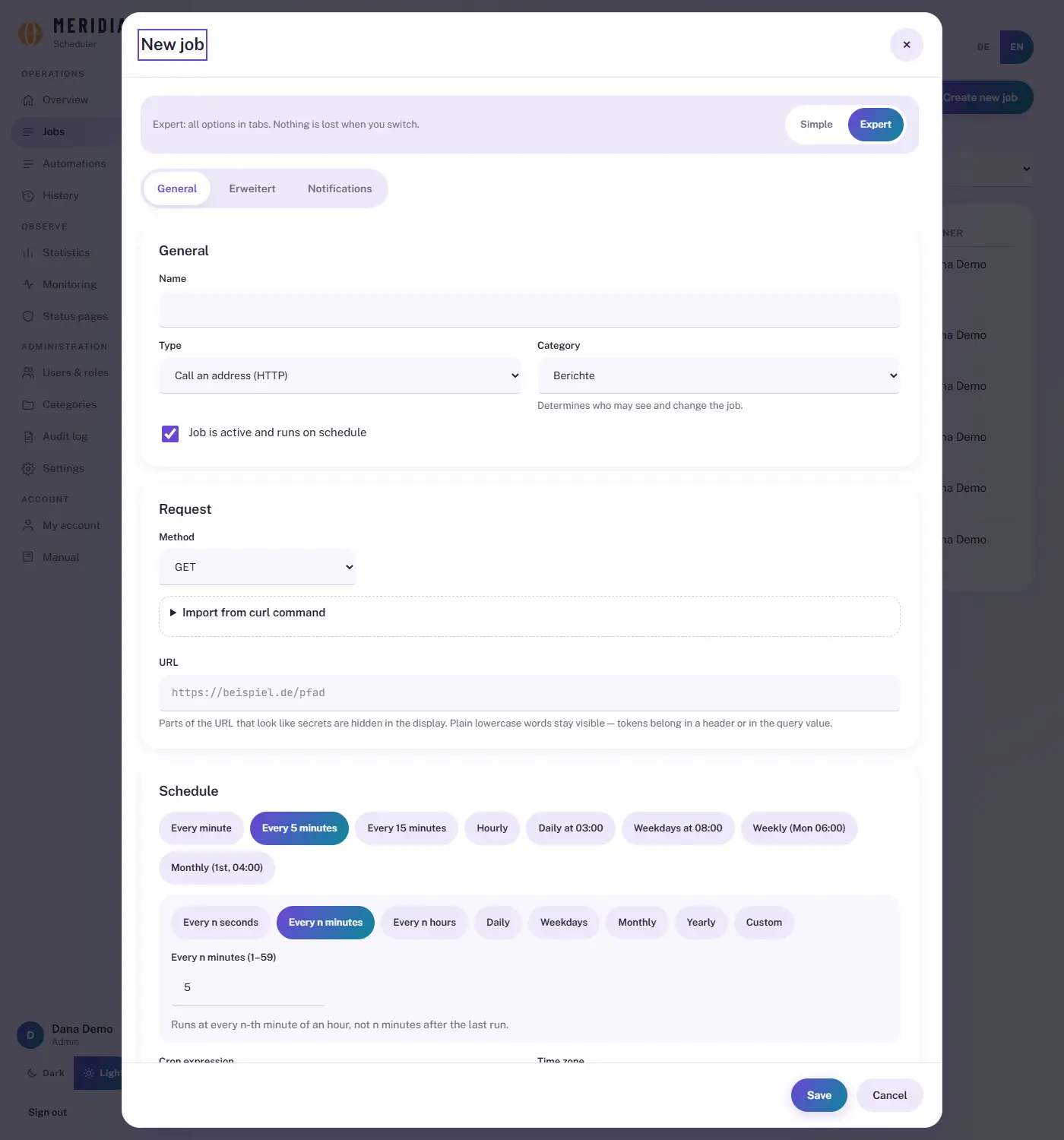
With the Quick pick you take over a common schedule with one click: Every minute, Every 5 minutes, Every 15 minutes, Hourly, Daily at 03:00, Weekdays at 08:00, Weekly (Mon 06:00) and Monthly (1st, 04:00).
With the builder you put together other schedules. Choose one of the modes:
| Mode | Meaning |
|---|---|
| Every n seconds | A fixed interval in seconds. The smallest allowed interval is a setting of the administrator (Settings, General), because very short intervals put a load on Meridian and on the target. |
| Every n minutes | Runs at every n-th minute of an hour (1 to 59), not n minutes after the last run. |
| Every n hours | Runs at every n-th hour (1 to 23), always on the full hour (minute 0). You cannot choose the minute in this mode; for another minute, use Daily or Custom. |
| Daily | Every day at the chosen Time of day. |
| Weekdays | At the time of day on the ticked days (Mon to Sun). |
| Monthly | On the Day of month (1–31) at the time of day. |
| Yearly | In the chosen Month on the chosen day at the time of day. |
| Custom | The five cron fields by hand. |
Cron expressions
A cron expression has five fields, separated by spaces: minute hour day month weekday. There is also @every 30s for fixed intervals in seconds. The expression is in the Cron expression field in a monospaced font and can be changed directly. If an expression is invalid, the editor reports an error on the field.
| Expression | Meaning |
|---|---|
*/5 * * * * | Every five minutes |
0 * * * * | Every full hour |
30 2 * * * | Daily at 02:30 |
0 8 * * 1-5 | Weekdays (Monday to Friday) at 08:00 |
0 7 * * 1 | Mondays at 07:00 |
0 4 1 * * | On the first of every month at 04:00 |
@every 30s | Every 30 seconds |
Weekdays count from 0 (Sunday) to 6 (Saturday); 1-5 is Monday to Friday. A * means “every value”, */5 means “every fifth”, a comma separates several values (1,15), and a hyphen makes a range (1-5).
Preview of the next runs
Below the schedule, the Next runs board shows when the job will run next (“Calculating …” while it loads). Check there that the schedule does what you want before you save.
Time zone
Choose the Time zone of the job from the list, for example Europe/Berlin. The cron expression applies in this time zone: 0 8 * * * means 08:00 Berlin time, in summer and in winter. Abbreviations such as “CET” and fixed offsets from UTC do not exist.
Daylight saving time
At the changeover, Meridian behaves as follows (example Europe/Berlin):
- In March the hour from 02:00 to 03:00 does not exist. A job planned for a time in this gap (for example 02:30) runs exactly once, shifted by the gap (03:30).
- In October the hour from 02:00 to 03:00 happens twice. Jobs with a fixed time of day run only in the first pass. Jobs with an interval (for example every 5 minutes or
@every) follow real time and run continuously.
Expiry of the schedule
With Schedule expires: no further runs are planned afterwards you enter a date after which the job no longer runs on schedule. The detail page then says “Schedule expires” or “expired, no further runs”. You can still start the job by hand afterwards.
Missed runs
If Meridian is not running at the planned time (for example during a restart or maintenance), the job misses an appointment. An appointment counts as missed if it is more than 5 minutes overdue. With Catch up a missed run (once) if the scheduler was not running at the time you decide what then happens:
- On: Meridian catches up one run, never more than one, even if several appointments were missed. If there is already a punctual appointment again, only that one runs.
- Off: the run is skipped. The history shows the note skipped.
The detail page says “missed runs are caught up” when the option is on. After a lock because of the licence (Licence), Meridian does not catch up any runs.
Overlap and retries
If a run takes longer than the interval to the next appointment, the rule If the job is still running decides: skip, queue or start in parallel. If a run fails, Meridian repeats it up to the number set in Retries on failure (0–10), with a growing delay. Both are described in the chapter HTTP jobs.
Runs and history
Every start of a job is a Run. Meridian records when it started, how long it took, how it ended and what it output. All runs together form the History. You see it in three places: on the History page for all jobs, on the detail page of a job for that one job, and live while a run is still running.
Permissions: you need View jobs. You see only runs of jobs in your categories. You may start or cancel a run by hand with Run jobs.
The History page
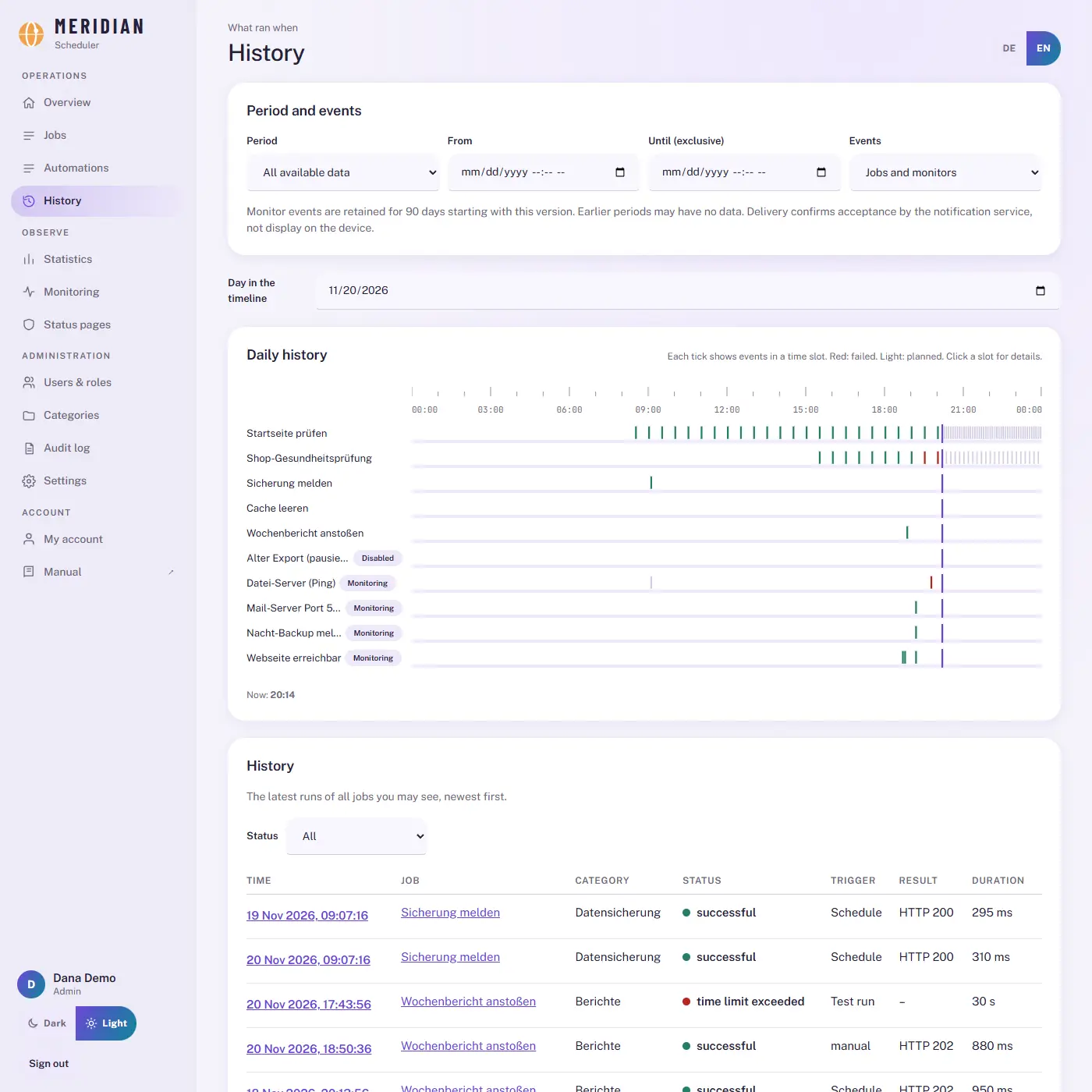
The History entry (menu, group Operations) has several parts:
- Period and events: choose the Period (Today, Yesterday, This week, This month, This year, All available data, a particular day, week, month or year, or a Custom period with From and Until (exclusive)) and, under Events, Jobs and monitors, only Jobs or only Monitors. A click on a bar in the rhythm band filters to that entry (“Filtered to the selected item.”); Clear filter undoes this.
- The rhythm band (“Daily history” or “History for this period”): one row per job and monitor with bars for runs (green), errors (red) and planned runs (light), as on the overview.
- The Monitor history table with Time, Monitoring, Event, Result and Notifications. It shows whether a message was Accepted, is still Pending or Delivery failed.
- The History list with the latest runs of all jobs you may see, newest first. With the Status field you show only runs in one state.
Meridian keeps monitor events for 90 days; older periods can be without data. “Delivery” confirms that the notification service accepted the message, not that it was displayed on the device. You load further entries with Load more.
States and triggers
| State | Meaning |
|---|---|
| waiting | The run is queued and starts on the next tick (a few seconds) or after a retry delay. |
| running | The run is in progress right now (signal yellow). |
| successful | It ended as expected: for HTTP jobs with an expected status code, for shell jobs with exit code 0. |
| failed | Wrong status code, a connection error or an exit code other than 0. |
| time limit exceeded | The run was ended after the time limit that was set. |
| cancelled | Someone cancelled the run. |
| skipped | The appointment was dropped, for example because the job was still running or the appointment was missed. The note gives the reason. |
The Trigger says what created a run: Schedule, manual (the Run now button), retry, Test run or Automation. A test run does not count in the statistics and does not count as the “last run”.
Run details and output
With Run details (or a click on the time of a run) you open the details: the Attempt (for retries), the Exit code or the HTTP status, when the run was Started and by whom, and the Output. The output appears as plain text.
- If the output is too long, Meridian shows the beginning and the end and leaves out the middle (note “The output was too long”).
- For HTTP jobs, the response is only there where storing responses is switched on; otherwise it says “No output stored.”
- Meridian replaces known secrets (passwords, tokens, values from environment variables) in the output with
••••before it shortens and stores it.
Even administrators never see the values in the output that Meridian knows as secrets. If a script outputs a secret in a form that Meridian does not recognise (for example converted), it can become visible there. So write scripts in a way that they do not output secrets.
The live log
While a shell run is running, the Live output of the run card shows the output as it is produced. At the top you see the state (live, “Connecting …” or “Polling every 2 seconds” if your browser does not get a data stream) and the Duration so far.
- Follow automatically keeps the view at the end of the output. Switch it off to read in peace.
- Cancel run asks first (“Really cancel the run? The process receives SIGTERM, after 10 s SIGKILL.”) and cancels with Yes, cancel. You may do this only with the permission Run jobs.
- With very long output, the view no longer shows the beginning.
The live log is masked, like the output. If the permission is withdrawn from you while the run is going, Meridian closes the data stream (“The live log is no longer available to you.”). Meridian deletes the pieces of the live log shortly after the run has ended; after that the stored output applies.
How long the history is kept
Individual runs, including their output, are kept for as many days as an administrator has set under Settings, General in Retention of individual runs. Meridian sums up older runs into daily values per job and deletes them: the statistics remain, output and details do not.
Notifications and channels
Meridian tells you when a job fails, runs again or takes longer than usual, and when a monitor reports an outage. The messages go through Channels. An administrator sets up the channels (Settings, tab Notifications); on each job and each monitor you decide what you are told about and through which channels.
Permissions: whoever may Change settings may create, change and delete channels. Which jobs report is set by each person in the job (Job editor, Notifications tab).
The channel list
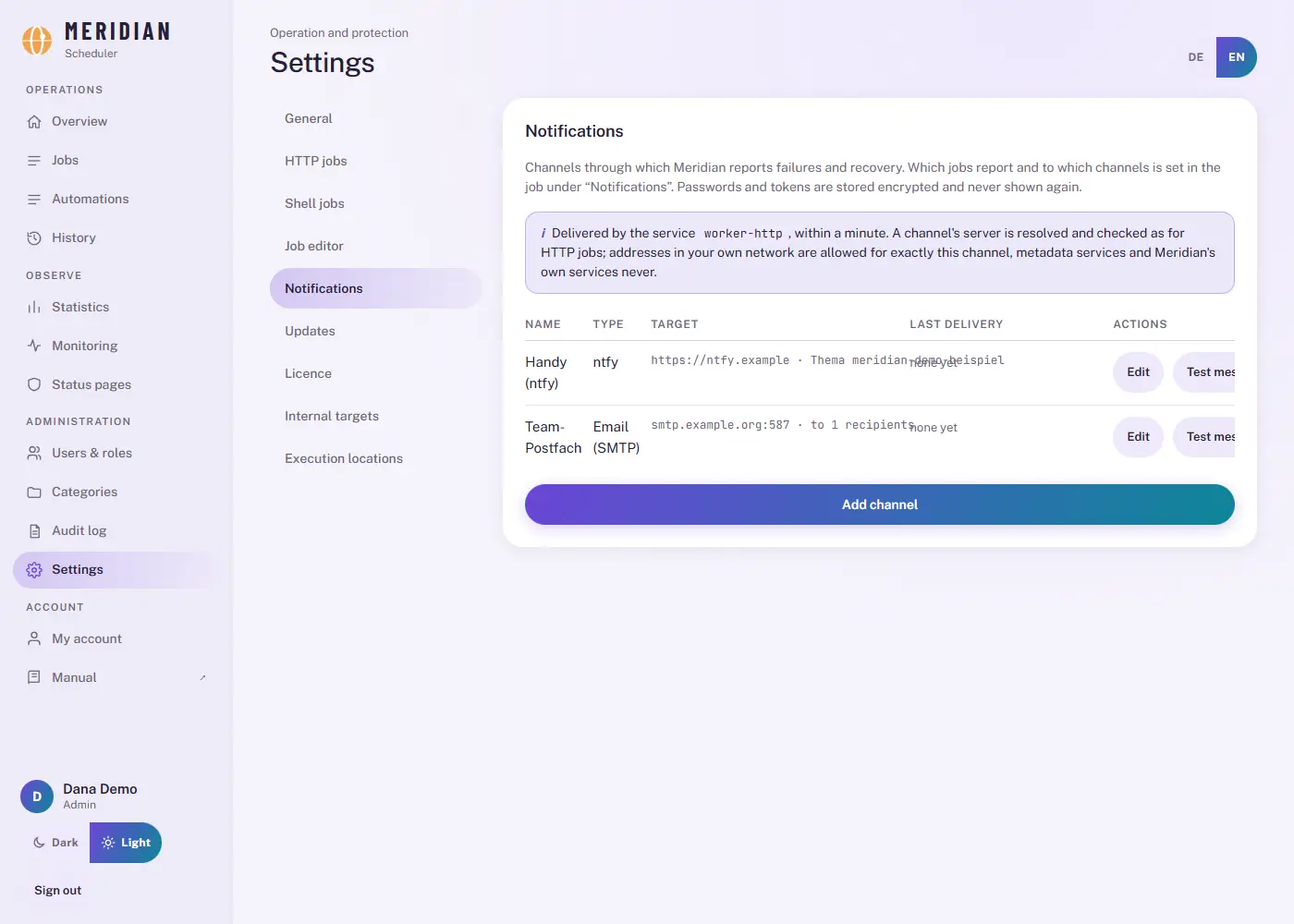
The Notification channels table shows Name, Type, Target, the Last delivery and the actions Edit, Test message and Delete. A channel that is switched off carries the note “(off)”. If there is no channel yet, Meridian sends no notifications.
Delivery happens within a minute, by the service in the background. The server of a channel is resolved and checked like for HTTP jobs; Meridian allows addresses in your own network for exactly this channel, but never metadata services or Meridian’s own services.
Creating a channel
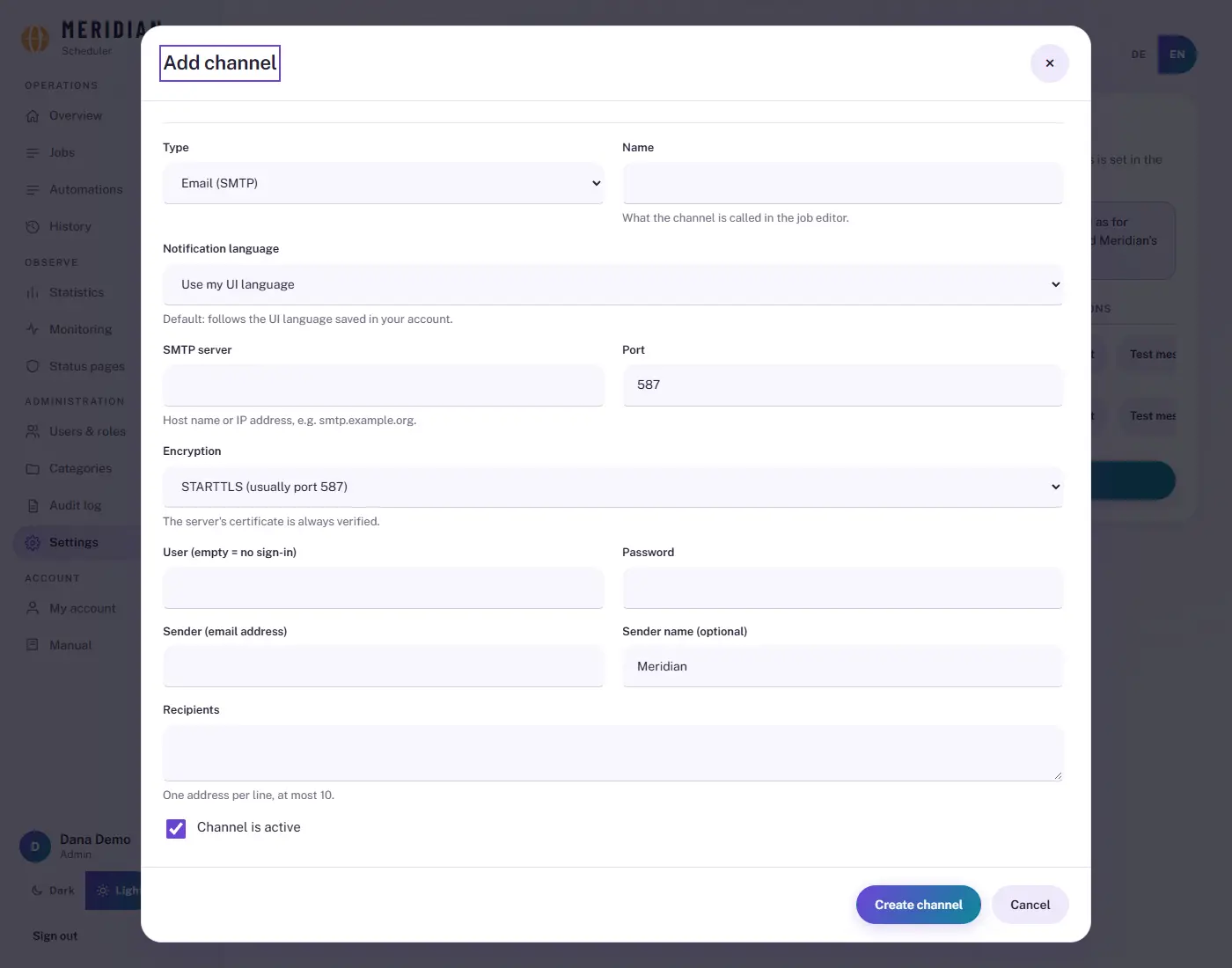
- Click Add channel.
- Choose the Type (it cannot be changed later) and enter a Name as it should appear in the job editor.
- Choose the Notification language. Use my UI language follows the language saved for your account.
- Fill in the fields for the type (see below). Channel is active switches it on or off.
- Click Create channel. With Test message you check whether it works.
Passwords and tokens of a channel are stored encrypted and never shown again. When you edit a channel with a stored value, it says “A password is stored. Leave empty to keep it.” With Remove stored password or Remove stored token you delete it.
The types of channels
| Type | What you enter |
|---|---|
| Email (SMTP) | SMTP server (for example smtp.example.org), Port, Encryption (the certificate of the server is always checked), User and password (empty = no sign-in), Sender (email address), Sender name (optional) and the Recipients, one address per line, at most 10. |
| ntfy | Server (https://ntfy.sh or your own ntfy server), Topic (letters, digits, _ and -; anyone who knows the topic can read along, so choose something hard to guess or use a token) and Priority (1 to 5). |
| Telegram | Chat (number of the chat or group, groups start with -, or @channelname) and the token of the bot (from BotFather; the bot must be in the chat). |
| Discord | The complete webhook address from “Edit channel → Integrations → Webhooks”. An additional bot token is not needed. |
| Slack | The complete webhook address of a Slack app with “Incoming Webhooks”. An additional bot token is not needed. |
| Pushover | The token of the application, the Pushover user/group key and the Priority (Low, Normal, High). When you change it, you enter both keys again. |
| Home Assistant | The Home Assistant address and the Notification destination: the Home Assistant dashboard, the Default notification service or a Specific phone or custom notification group with the Home Assistant action name. Credentials are stored encrypted. |
| Webhook | The Address (URL): Meridian sends a JSON body via POST (event, job, status, time, note, link, text). Parameters in the address are not allowed; credentials belong in the token field (sent as “Authorization: Bearer …”). |
| Browser (Chrome / Firefox) | An Operator contact email (your reachable email address, for example admin@example.org); no notifications are sent to it. After that, each user connects their browser under My account (Browser notifications). The Browser devices card shows the connected devices. |
Which jobs use which channel
In the job (tab Notifications) and in the monitor, you choose Notify about …: all channels, selected channels only or no channels. If there is no channel, the editor says “There is no channel yet. An administrator creates them under Settings → Notifications.” If you delete a channel (“Delete channel? It also disappears from the jobs.”), it disappears from all jobs.
You can set the email recipients on three levels; the most specific one applies: the recipients of the job, otherwise those of the category, otherwise those of the email channel.
When Meridian reports
- Job failed: after the set number of failures in a row, once per series. A failure counts only when no retry follows.
- Job recovered, after it failed.
- Job disabled, when Meridian has switched it off after several failures.
- Job takes longer than usual and Certificate expires.
- Monitor reports an outage and reachable again (Monitoring).
Each message contains a link to the job if the Address of Meridian is entered under Settings, General. The texts are masked: secrets never appear in a notification.
Automations
An automation connects an event with an action following the pattern If … then …. For example: if the shop job fails, send the team a message. Or: if no backup has been reported by 08:00 on a working day, start a job. Automations react to jobs, monitors or a schedule. When the conditions are met, Meridian starts jobs or sends messages. You find them under Automations (menu, group Operations).
Permissions: you need the permission Manage automations for all categories. Otherwise the page says “You do not have permission to manage automations.” and the menu entry is missing.
The list
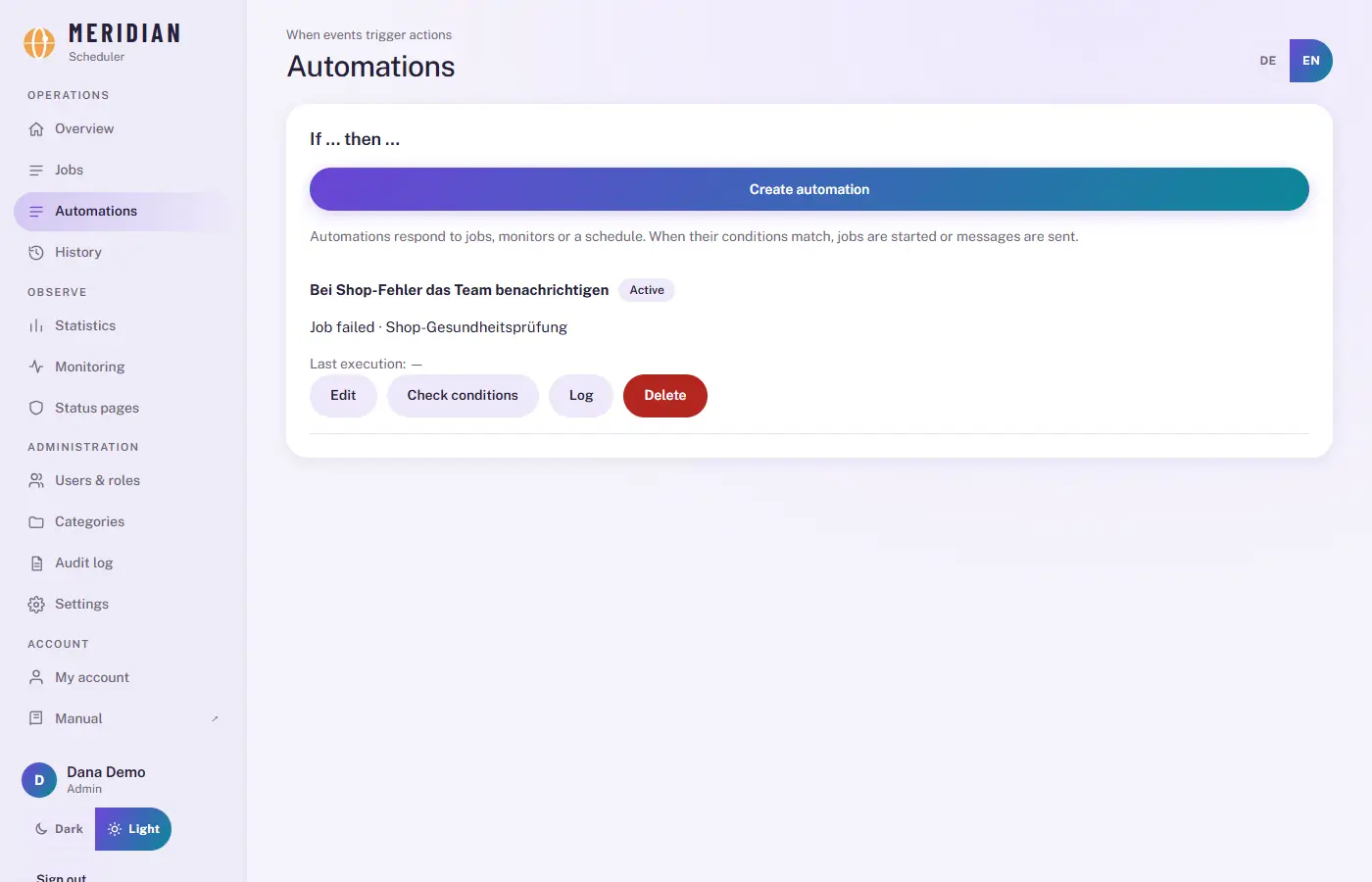
Each automation shows its Name, its trigger, the Last execution and the Next scheduled time (for schedules). You work with it using Edit, Check conditions, Log and Delete. The Log lists the executions with Time, Result and the Actions (for example Job run or Notification); “No executions yet.” is shown there as long as nothing has been triggered.
Creating an automation
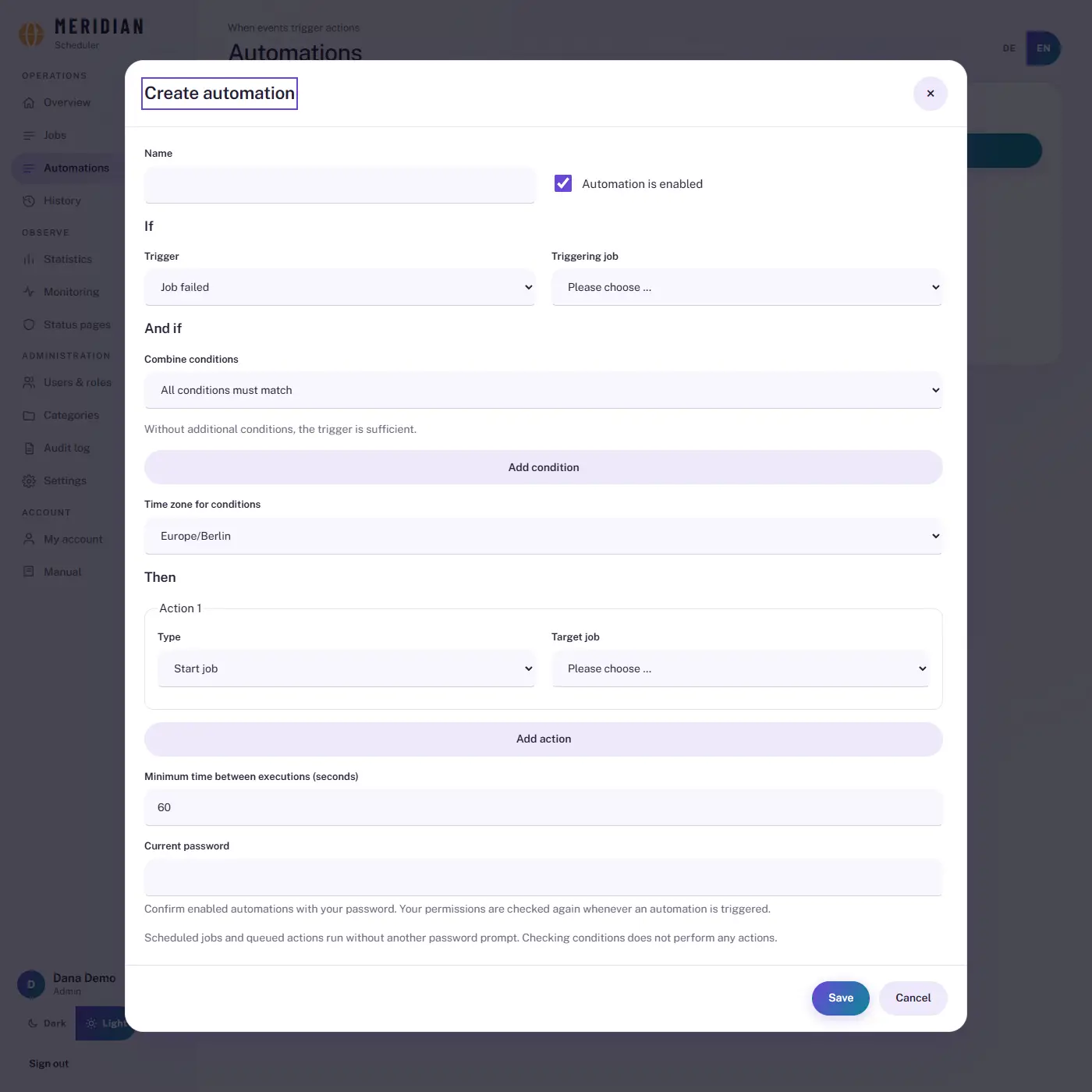
- Click Create automation and enter a Name. Automation is enabled switches it on or off.
- Section If: choose the Trigger and, where needed, the job or monitor that triggers it.
- Section And if (optional): add Conditions and decide how they are combined (All conditions must match or At least one condition must match). Without further conditions, the trigger is enough.
- Section Then: choose one or more Actions.
- Set the Minimum time between executions (seconds) so that an automation does not trigger all the time in case of a permanent error.
- Confirm with your Current password (only for active automations) and save.
Triggers
| Trigger | When |
|---|---|
| Job failed | A run of the chosen job ends with an error. |
| Job succeeded | A run ends without an error. |
| Job timed out | A run is ended because of the time limit. |
| Job aborted | A run is cancelled. |
| Job recovered | A job runs again after it failed. |
| Monitor reports an outage | The chosen monitor reports an outage. |
| Monitor recovered | It reports in again. |
| Schedule | At fixed times. You enter a cron expression (minute hour day month weekday, for example 0 8 * * 1-5 for weekdays at 08:00) and the Time zone. |
Conditions
With conditions you narrow down the trigger. Each condition has a Type:
- Job status: the job is in a certain State (for example Successful, Failed, Running or Disabled).
- Consecutive job failures: Minimum consecutive failures.
- Monitor state: Reachable or Outage.
- Time window: From and Until (exclusive).
- Weekdays: on which days. The Time zone for conditions decides in which time the time of day and the weekday apply.
Add condition adds another one, Remove condition deletes it.
Actions
An automation can run several actions one after another. Add action and Remove action change the list. The types:
- Start job: starts an existing job.
- Send notification: sends a Message through the chosen Channels. If there is no channel yet, first create one in the settings (Notifications).
- Call a webhook / HTTP endpoint: calls a Webhook URL with HTTP method, HTTP headers (Name: Value per line) and Request body, with a Time limit in seconds.
- Run a command in a Docker container and Run a shell script on the host: run a command, with Interpreter, User and Shell script / command. These actions exist only if the type of execution location can be used on the system (Shell jobs and execution locations); otherwise it says “Action not available”. The script on the host exists only on local installations where the operator has switched on host execution, never on hosted systems.
Webhooks, Docker and host actions get an encrypted job of their own (an action job) that runs only through the automation, without a schedule of its own. “The saved configuration is preserved. To change it, replace the configuration or open the action job.” With Replace configuration you enter it again.
Checking conditions
With Check conditions you see whether the conditions would be met now (“Conditions currently match.” or “do not match.”). The test runs no actions.
Permissions and password. You confirm active automations with your password. Every time one triggers, Meridian checks your permissions again: if you lose a permission, the action no longer runs. Scheduled jobs and actions that are already queued run without asking for the password again. An automation can also never trigger runs without end: Meridian limits chains of automations.
Monitoring and status pages
This chapter has two parts. Monitoring watches things that do not run from Meridian: it checks a web address, a network port or a computer by ping, or it waits for the sign of life from a script, a backup or a router. The Status pages show the state of selected jobs and monitors on one page that you can also pass on to people without an account.
The Monitoring page
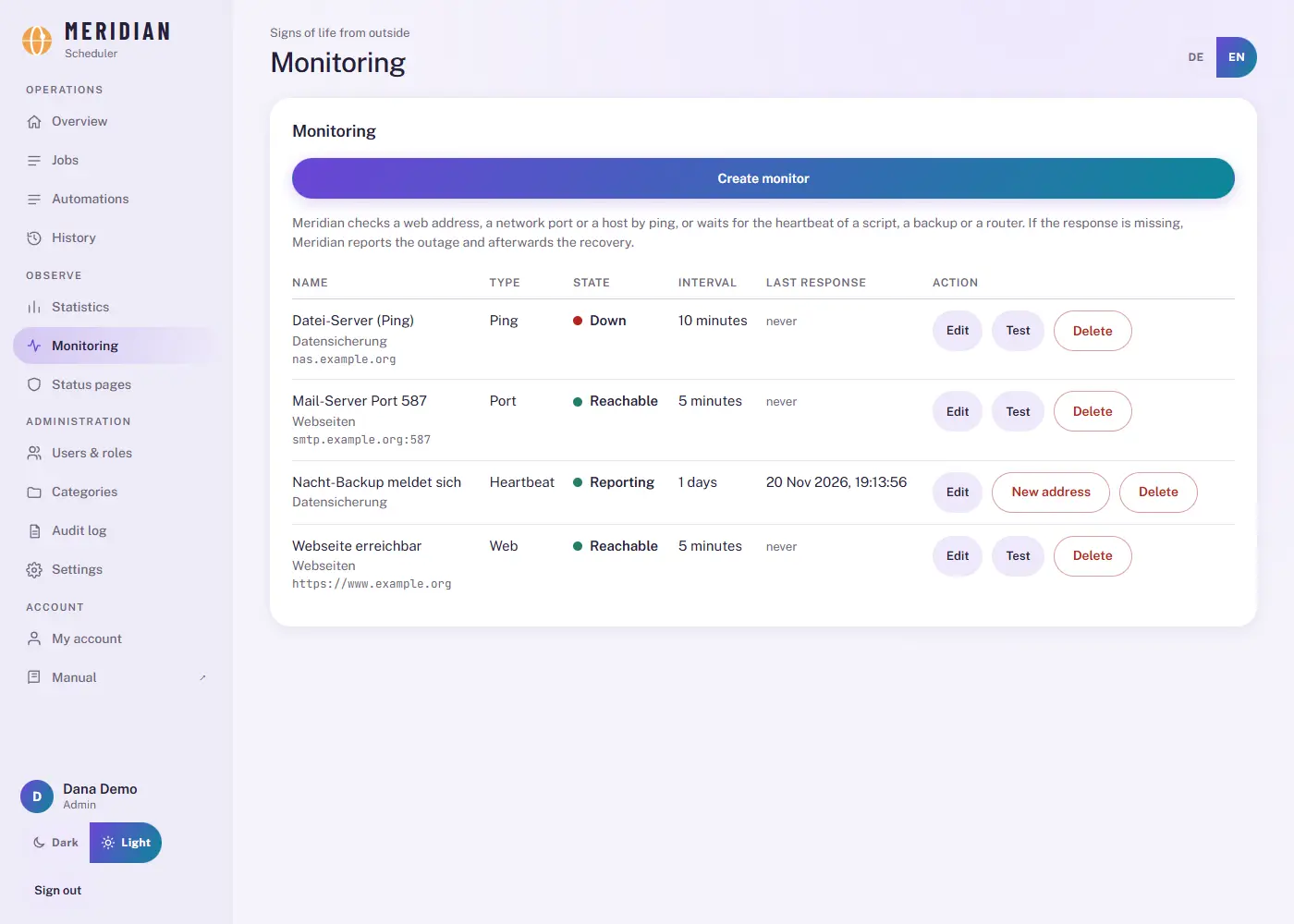
You reach it through Monitoring (menu, group Observe). The table shows Name, Type, Category, State, Interval and Last response as well as the actions. You see only monitors in your categories. The state is:
| For active checks | For heartbeats |
|---|---|
| Reachable | Reporting |
| Down | No heartbeat |
| Waiting for the first check | Waiting for the first ping |
| Paused | Paused |
Creating a monitor
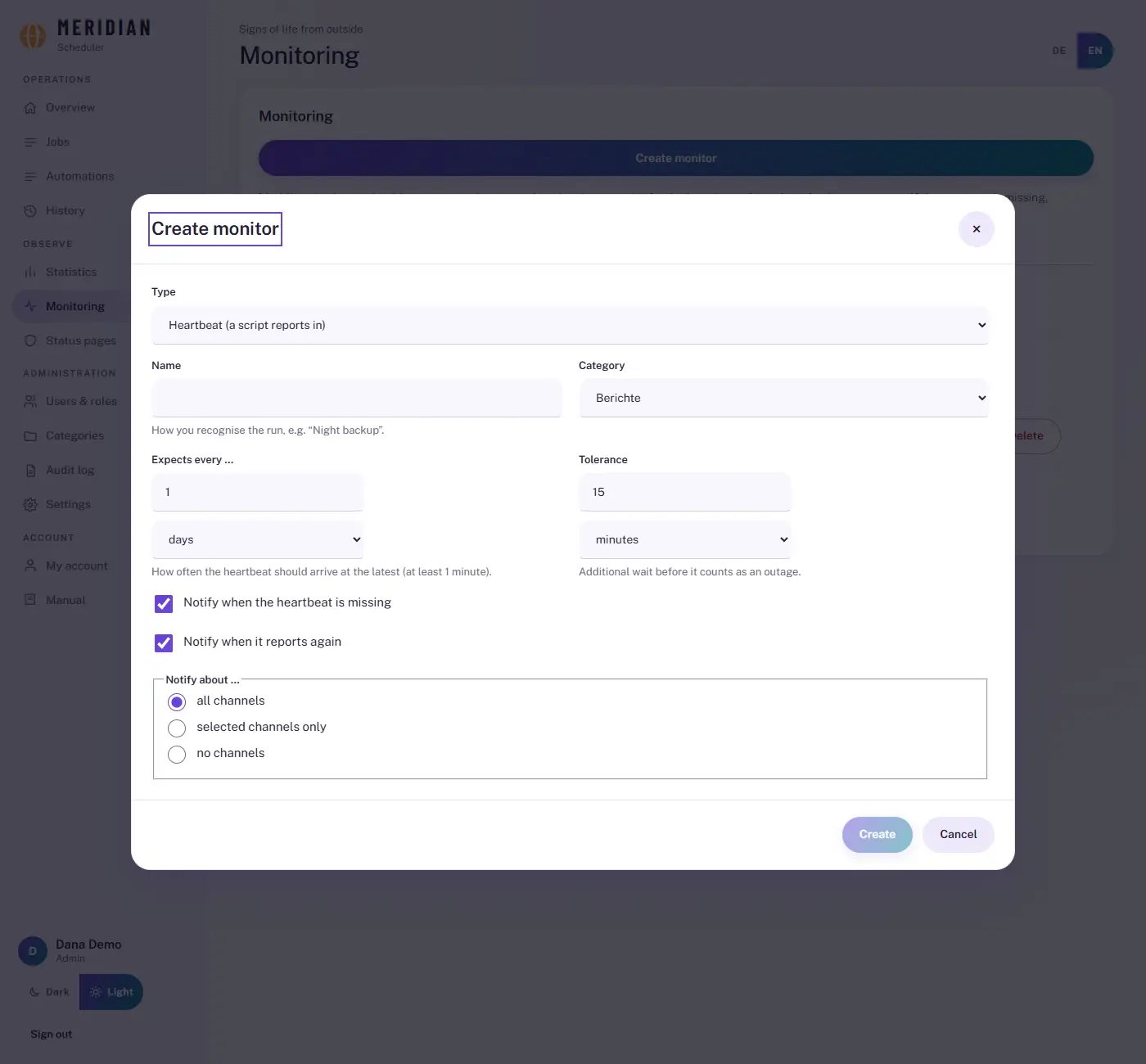
- Click Create monitor.
- Enter a Name that shows the purpose (for example “Night backup”) and choose the Category.
- Choose the Type:
- Heartbeat (a script reports in): a script, a backup or a device regularly calls a Ping address of Meridian. If the call fails to appear, it counts as an outage.
- Web address (HTTP/HTTPS): Meridian calls the address regularly.
- Network port (TCP): Meridian checks whether a port can be reached (
smtp.example.org:587). - Ping (ICMP): Meridian checks whether a computer answers a ping (
nas.example.org).
- For active checks, enter the Target and, under Check every …, the interval (at least 1 minute). For a heartbeat, under Expects every … you enter how often it should arrive at the latest (at least 1 minute), and the Tolerance, an additional waiting time before it counts as an outage.
- Active checks have Down after … failed attempts (1 to 10): only after that many failed checks in a row is the target considered down and reported. For web addresses, the Maximum response time (seconds) and the Expected status codes are added (for example
200-299). Meridian checks the address you entered including redirects, but no JavaScript and no content that is loaded later. For important functions, enter their exact URL. - Decide when to notify (Notify when the target goes down and when it is reachable again; for heartbeats when the heartbeat stops and when it reports in again) and Notify about … which channels (Notifications).
- Click Create.
With Test now in the form and Test in the list you run a Test check at once; the result appears without changing the state.
The ping address of a heartbeat
After you create a heartbeat, Meridian shows the Ping address only once. Call it at the end of your script (“Call at the end of your script”), with GET or POST, for example with curl. Anyone who knows the address can send heartbeats: do not pass it on. Click I have saved it, hide when you have noted it down. If the address is lost or has become known, create a new one with New address; the old one stops working at once (confirmation Yes, renew).
Meridian stores only a hash of the ping address. It cannot be shown again. You also see the target of an active check (the address) in the edit form only if an administrator has switched on the display of stored targets; otherwise it says “Leave empty to keep the stored target”. When the display is switched on, each access is recorded in the audit log.
Status pages
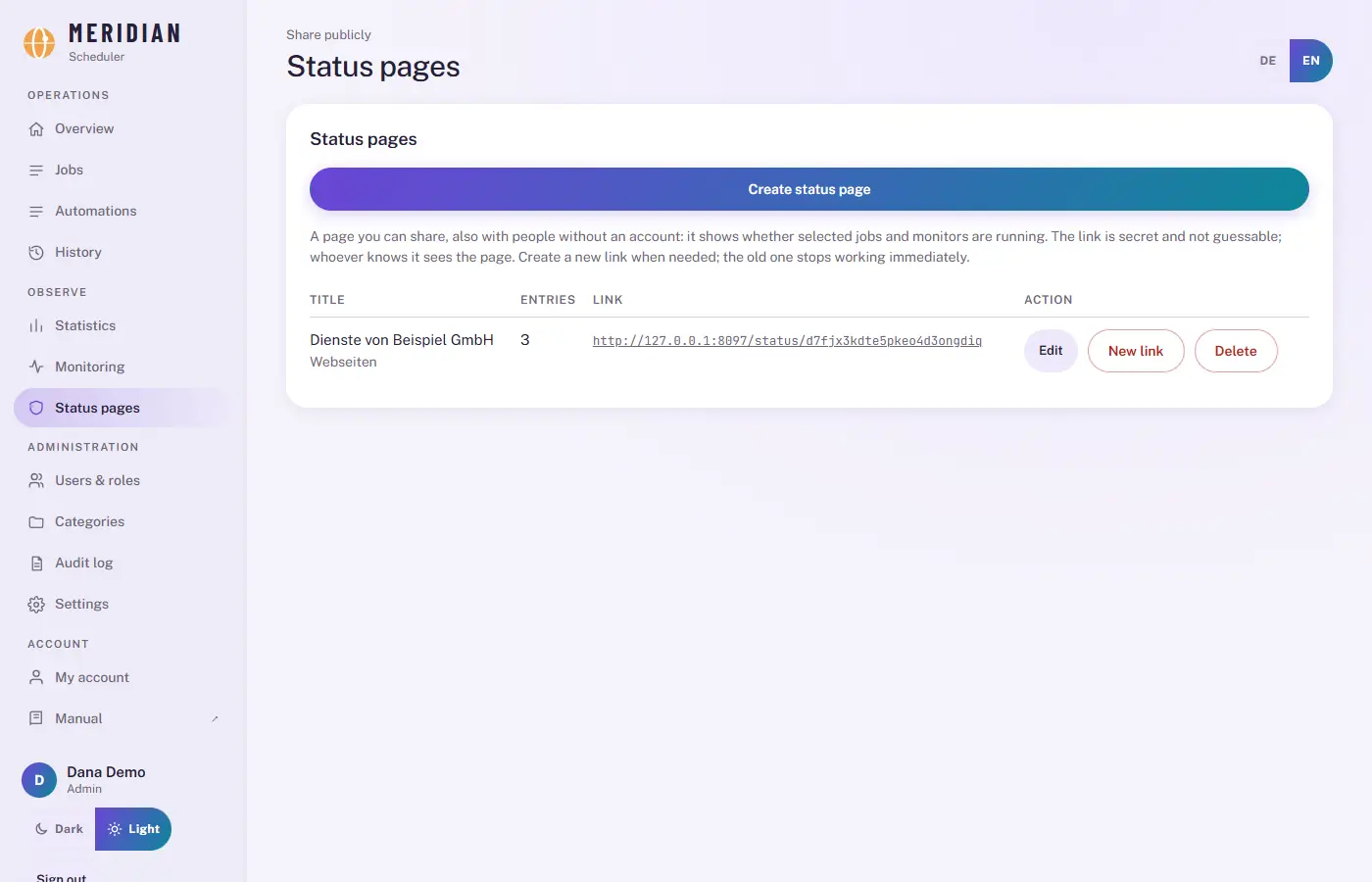
A status page is a page to pass on, also to people without an account: it shows whether selected jobs and monitors are running. You reach it through Status pages (menu, group Observe) with the permission Edit status pages. The Link of the page is secret and cannot be guessed; anyone who knows it sees the page. If needed, you create a new link with New link; the old one stops working at once.
- Click Create status page.
- Enter the Title (it appears at the top of the public page), choose the Category of the page (it decides who may edit the page) and the Status page language (visitors can switch between German and English on the page).
- Under Entries, use Add entry to add jobs and monitors (Choose a job or monitor …, then Add). You choose the Display name yourself. With Back to top and Remove you arrange the list.
- Page is reachable switches the page on; when it is off, the link answers like an unknown one.
- Save. You copy the link from the table.
What the page reveals. A status page shows only the display name, the state and the time, never the name of the job, addresses or outputs. You choose the display name yourself: do not write anything in it that outsiders should not know.
Statistics
The Statistics page shows how your jobs behave over time: how many runs there were, how many of them failed and how long they took. You reach it through Statistics (menu, group Observe). You need the permission View jobs and see only the jobs in your categories.
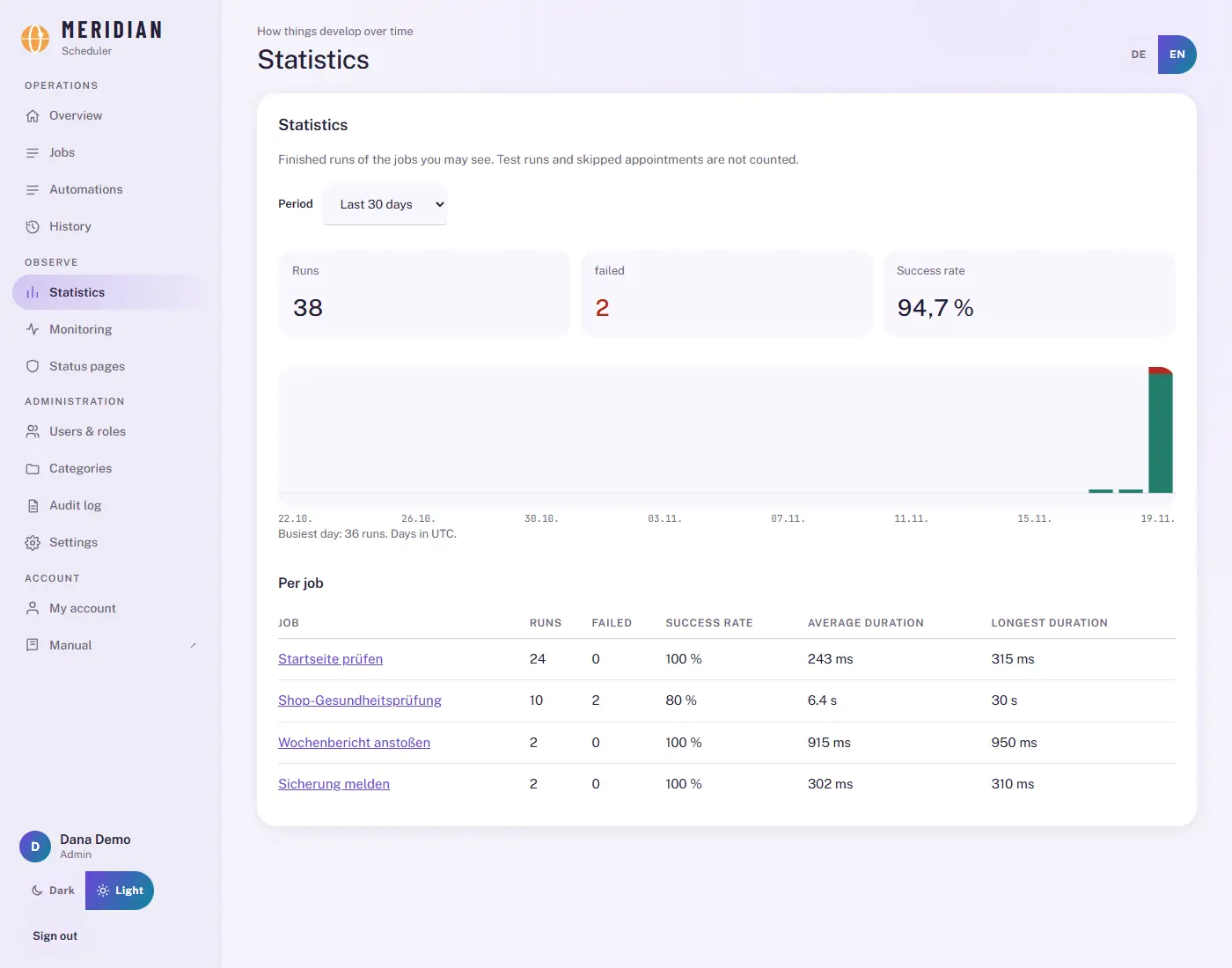
The page counts finished runs of the jobs you may see. Test runs and skipped appointments do not count. With the Period field you choose Last 7 days, Last 30 days (the default), Last 90 days, Last 180 days or 1 year.
Key figures
- Runs: the number of all finished runs in the period.
- failed: runs that failed or exceeded the time limit.
- Success rate: the share of successful runs.
Per job
The Per job table shows for each job the Runs, the Failed ones, the Average duration and the Longest duration in the chosen period. If the average duration of a job keeps rising, this is often a sign of a problem at the target, before runs start to fail. If there were no finished runs in the period, it says “There were no finished runs in this period.”
Meridian deletes individual runs after the set retention time and sums them up into daily values per job. The statistics use these daily values; so they are kept for older periods too, while the output of individual runs is no longer there (How long the history is kept).
Users and roles
Under Users & roles (menu, group Administration) you decide who may sign in to Meridian and what they may see and do there. The page has two parts, Users and Roles and permissions. You grant permissions through Roles, and each role applies to all categories or only to selected ones (Categories). For this you need the permission Manage users, audit log, lift locks (users) or Manage roles and permissions (roles). Whoever may only view roles sees them but cannot change them.
The user list
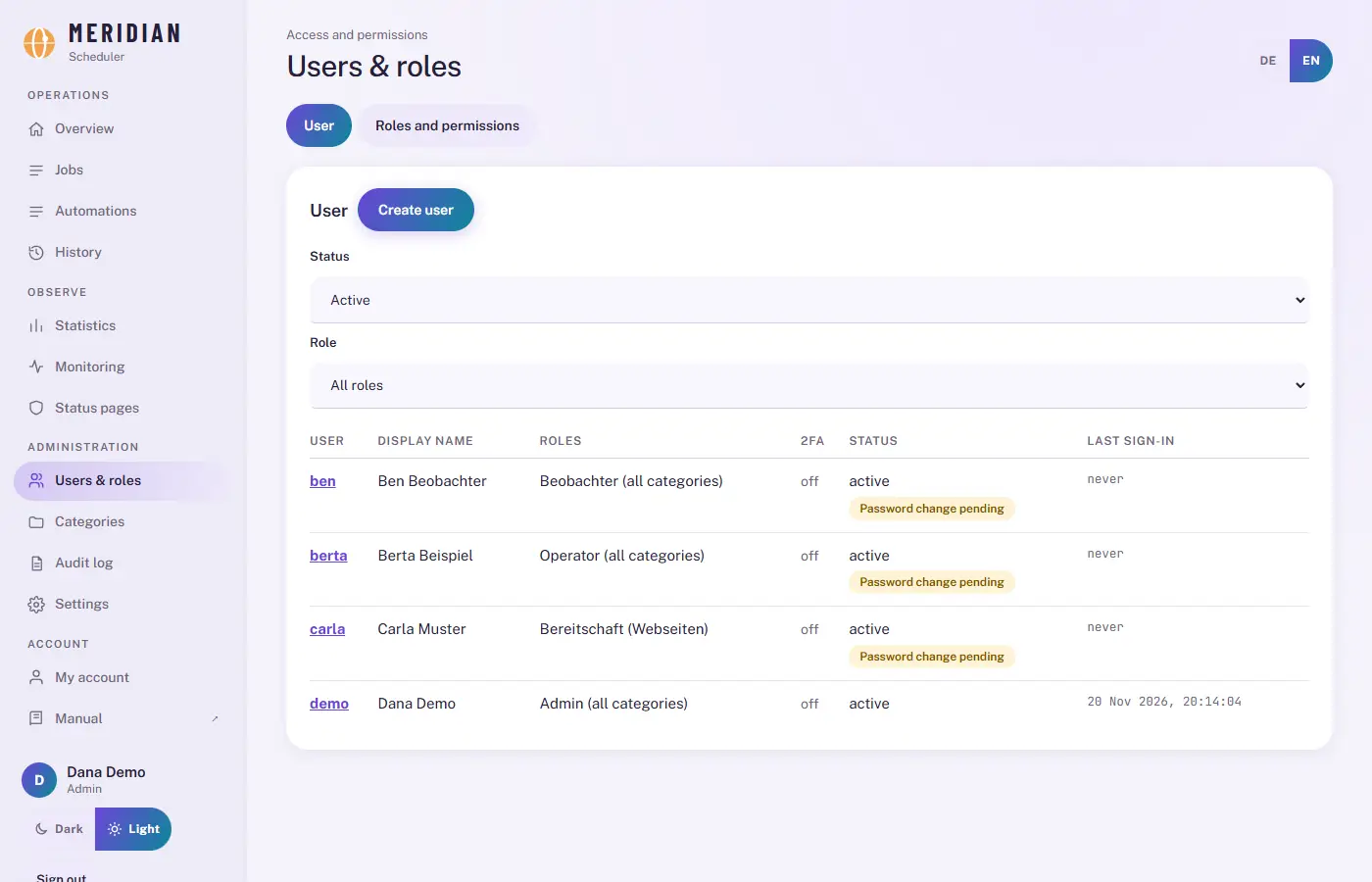
The Users table shows User (the username), Display name, Roles, 2FA, Status and the Last sign-in. You filter with the Status and Role fields (All roles). The status is active, Password change pending (the user still has a one-time password) or locked (disabled). A role without a category shows as no category, one for all categories as all categories; an entry assignment without effect means that the assigned category has been deleted.
Creating a user
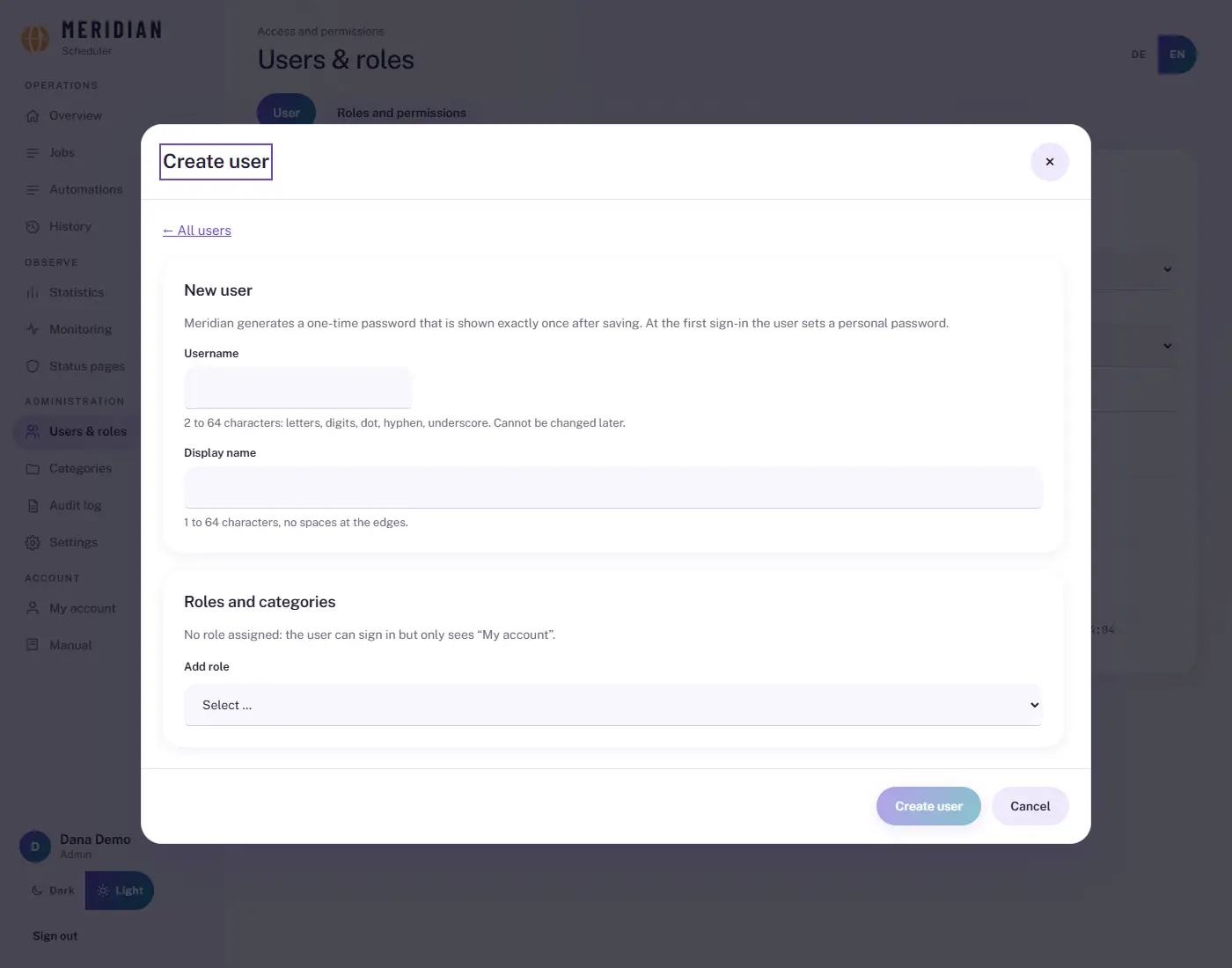
- Click Create user.
- Enter the Username (2 to 64 characters: letters, digits, dot, hyphen, underscore; it cannot be changed later) and the Display name (1 to 64 characters).
- Under Roles and categories, choose one or more roles, each for all categories or for selected ones.
- If a role with dangerous permissions is added, Meridian asks for Your password to confirm.
- Click Create user.
Meridian generates a One-time password that is shown exactly once after saving. Pass it on to the user in a safe way. At the first sign-in, the user sets a password of their own. The one-time password is valid for 7 days.
Editing a user
A click on a user opens their page with these sections:
- Master data: change the Display name (Save display name). For your own account, use My account.
- Roles and categories: change assignments (Save roles). An assignment whose category has been deleted grants nothing (“Check assignments”). Another administrator changes roles, not you yourself.
- Security: Reset 2FA, Reset password (creates a new one-time password, ends all sessions, 2FA stays in place), End all sessions and, after several failed attempts, Lift lock (Sign-in lock). You confirm these actions with your password.
- Account: Disable ends all sessions, and the user can no longer sign in; their assignments are kept, and Enable undoes it. Delete user marks them as deleted: sign-in, sessions, 2FA and assignments are removed. The name and display name stay in the audit log and in the history, and the username stays taken. This cannot be undone. For the same person, you create a new user later.
There must always be at least one active administrator. Meridian refuses changes that would remove the last administrator.
Roles and permissions
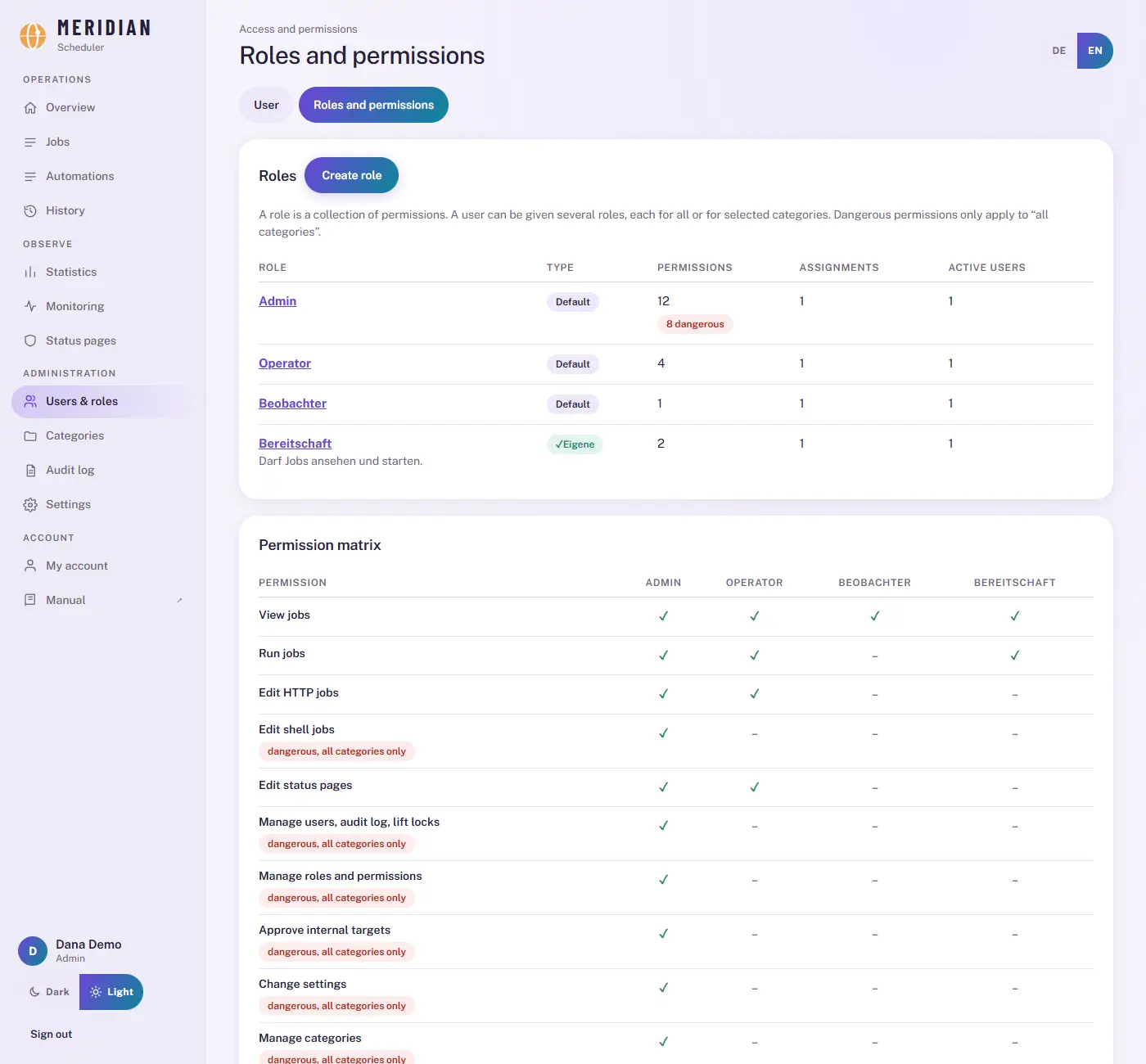
The Roles and permissions part explains: a role is a set of permissions. A user can have several roles, each for all or for selected categories. Dangerous permissions apply only to “all categories”. The Roles table shows Role, Type (default role or Custom role), Permissions, Assignments and the number of Active users. The Permission matrix below shows for each permission which role has it.
| Permission | What it allows |
|---|---|
| View jobs | View jobs, runs and history of the allowed categories. |
| Run jobs | Start jobs by hand and cancel running runs. |
| Edit HTTP jobs | Create, change and delete HTTP jobs. |
| Edit shell jobs (dangerous) | Create and change shell jobs. This runs commands on approved targets. |
| Edit status pages | Edit status pages. |
| Manage automations (dangerous) | Manage your own automations with triggers, conditions and actions. |
| Manage categories (dangerous) | Create, rename and delete categories. |
| Manage users, audit log, lift locks (dangerous) | Create users, assign roles, reset passwords and 2FA, read the audit log. |
| Manage roles and permissions (dangerous) | Create custom roles, change their permissions and delete them. |
| Change settings (dangerous) | Change global settings. |
| Approve internal targets (dangerous) | Approve internal networks and hosts for HTTP jobs. This weakens the protection. |
| Manage execution locations for shell jobs (dangerous) | Approve containers, SSH servers and host profiles for shell jobs. |
The dangerous permissions are marked in the interface (“dangerous, all categories only”). They never apply to a single category. The server checks every permission itself on every access; a hidden button is only for convenience.
Creating a custom role
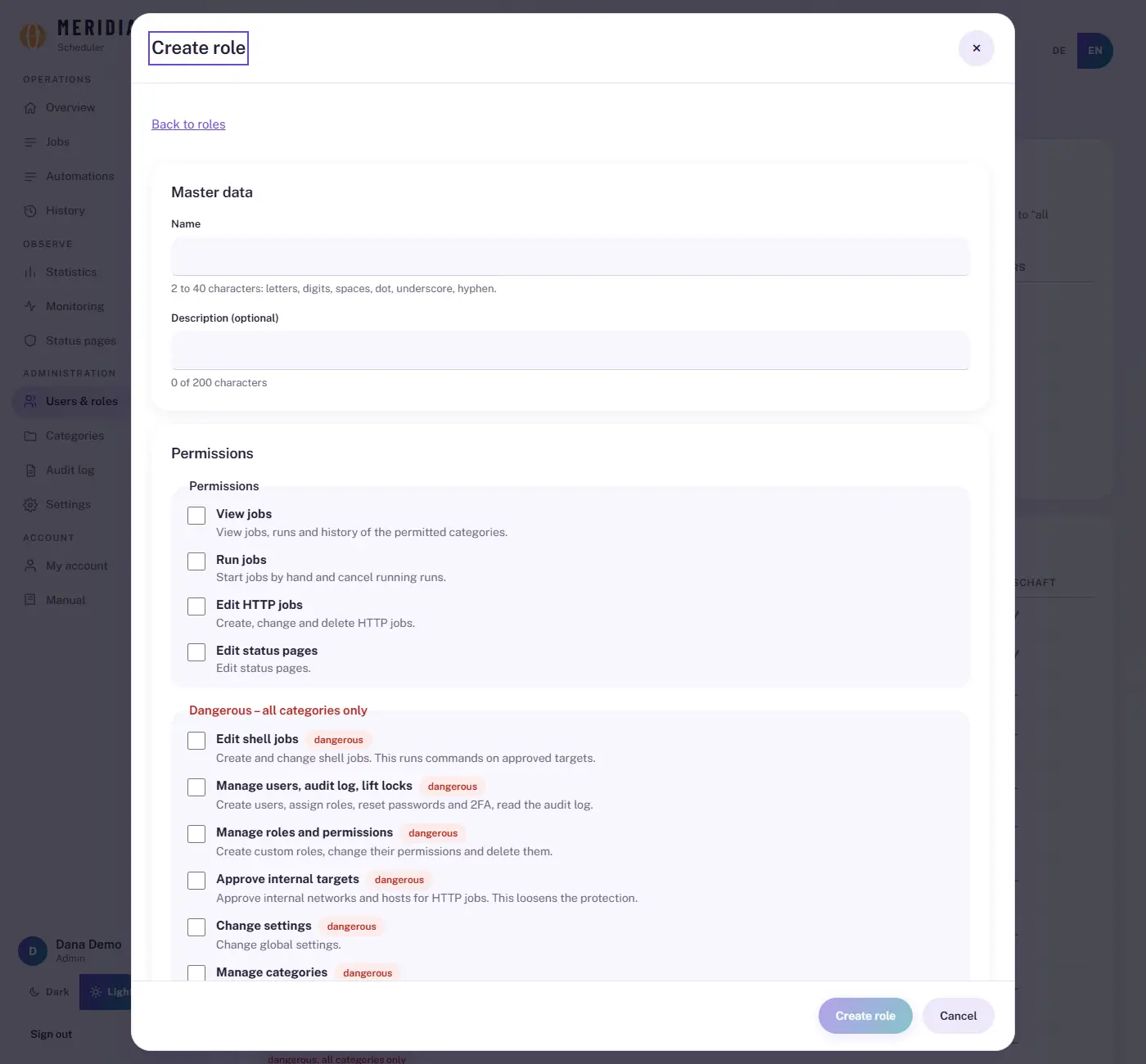
- In the Roles and permissions part, click Create role.
- Enter a Name (2 to 40 characters) and a Description (optional).
- Tick the Permissions you want. Dangerous permissions carry the note “Dangerous – all categories only”. You can only grant permissions that you have yourself.
- Click Create role and, for dangerous permissions, confirm with your password.
After that you assign the role to users. For an existing role (page Edit role), you see who has it under Users with this role. Effect shows what a change does. With Duplicate you create a copy, with Delete role you remove it if it is assigned to nobody. The names of the default roles are fixed, the Admin role always has all permissions, and a role that is assigned to you yourself is changed by another administrator.
Protecting categories. A role for “selected categories” sees and changes only jobs, monitors and status pages of these categories. Meridian always decides this from the stored category of the entry, never from a detail in the request. An empty or deleted category list never means “everything”.
Categories
Categories group jobs, monitors and status pages and limit what users may see and do. A category can be called, for example, “Websites”, “Backups” or “Reports”. A role that applies to the category “Websites” sees only the jobs of that category. The email recipients for notifications and the approvals of internal targets and execution locations are also attached to categories. You manage them under Categories (menu, group Administration) with the permission Manage categories for all categories.
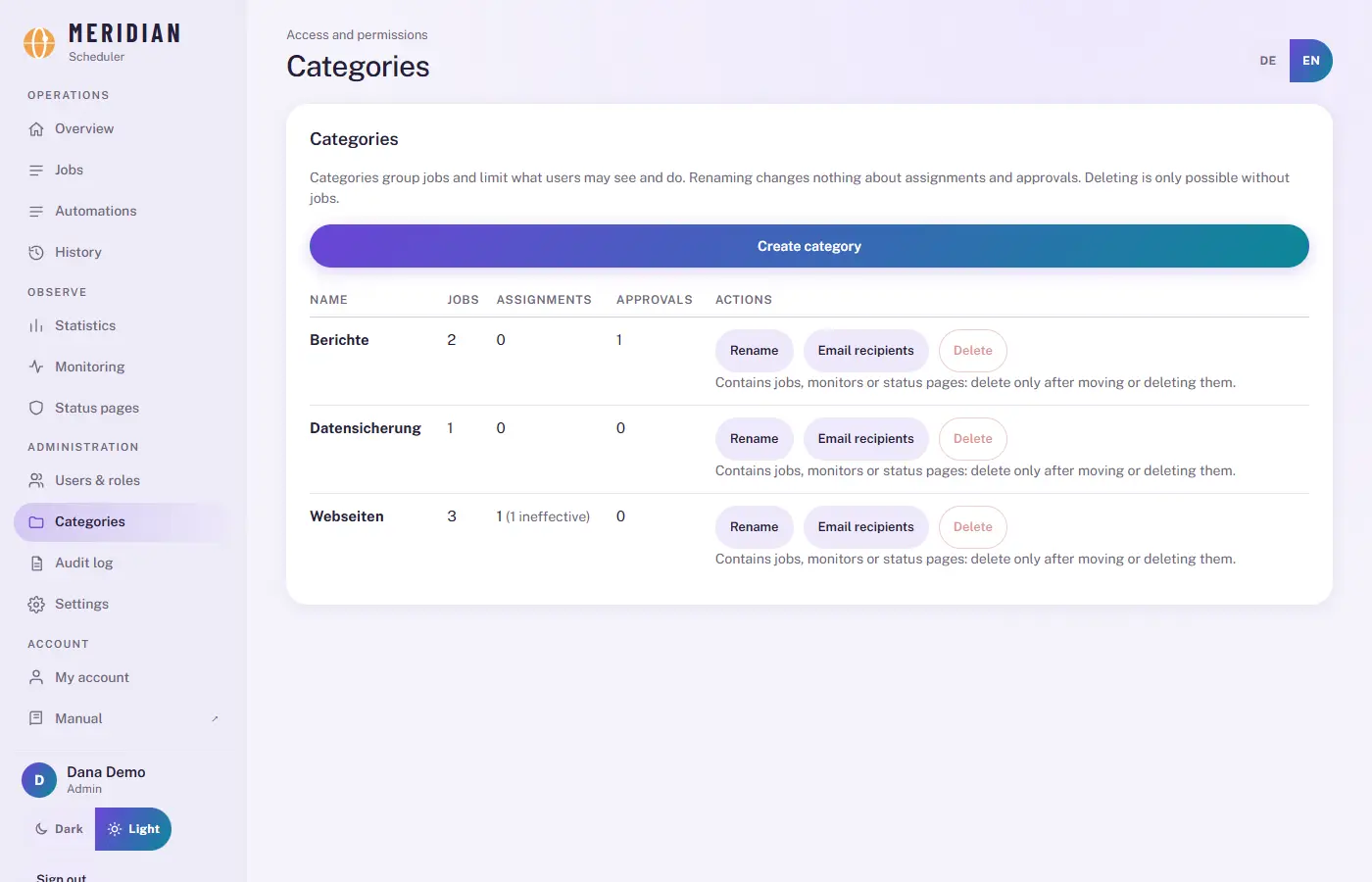
The list
For each category, the table shows the Name, the number of Jobs, Assignments (how many role assignments refer to the category) and Approvals (internal targets and execution locations) as well as the Actions. If there are none yet, it says “No categories yet.”
Creating and renaming a category
- Click Create category.
- Enter the Name and confirm.
With Rename you change the name. This changes nothing about assignments and approvals, because they are attached to the category, not to the name.
Email recipients
With Email recipients you decide who receives notifications about jobs and monitors of this category by email: one address per line, at most 10. Empty means: the recipients of the email channel. Jobs with recipients of their own take priority (Notifications).
Deleting a category
You can delete a category only if it contains no jobs, monitors or status pages: move them to another category first or delete them. Before deleting, Meridian shows the effects: how many Assignments lose their effect (“ineffective”) and how many Approvals of internal targets are deleted with it (“deleted (never global)”). If nothing is affected, it says “No assignments or approvals depend on this category.” Confirm with Delete permanently.
Deleting never makes anything bigger. If you delete a category, the assignments of this category lose their effect; they never turn into “all categories”. The approvals of internal targets and execution locations of this category are deleted; they never turn into global approvals.
Categories and permissions
- Each job, each monitor and each status page belongs to one category or to none. Only roles that apply to all categories see entries with No category.
- Lists show you only entries of your categories (“You only see jobs in your categories.”). This applies equally to the overview, history, statistics and the API.
- Dangerous permissions (for example Edit shell jobs) apply only to all categories.
Audit log
The Audit log records who did what and when: sign-ins and failed attempts, changes to users, roles and settings, jobs that were created and deleted, and much more. You find it under Audit log (menu, group Administration) with the permission Manage users, audit log, lift locks for all categories.
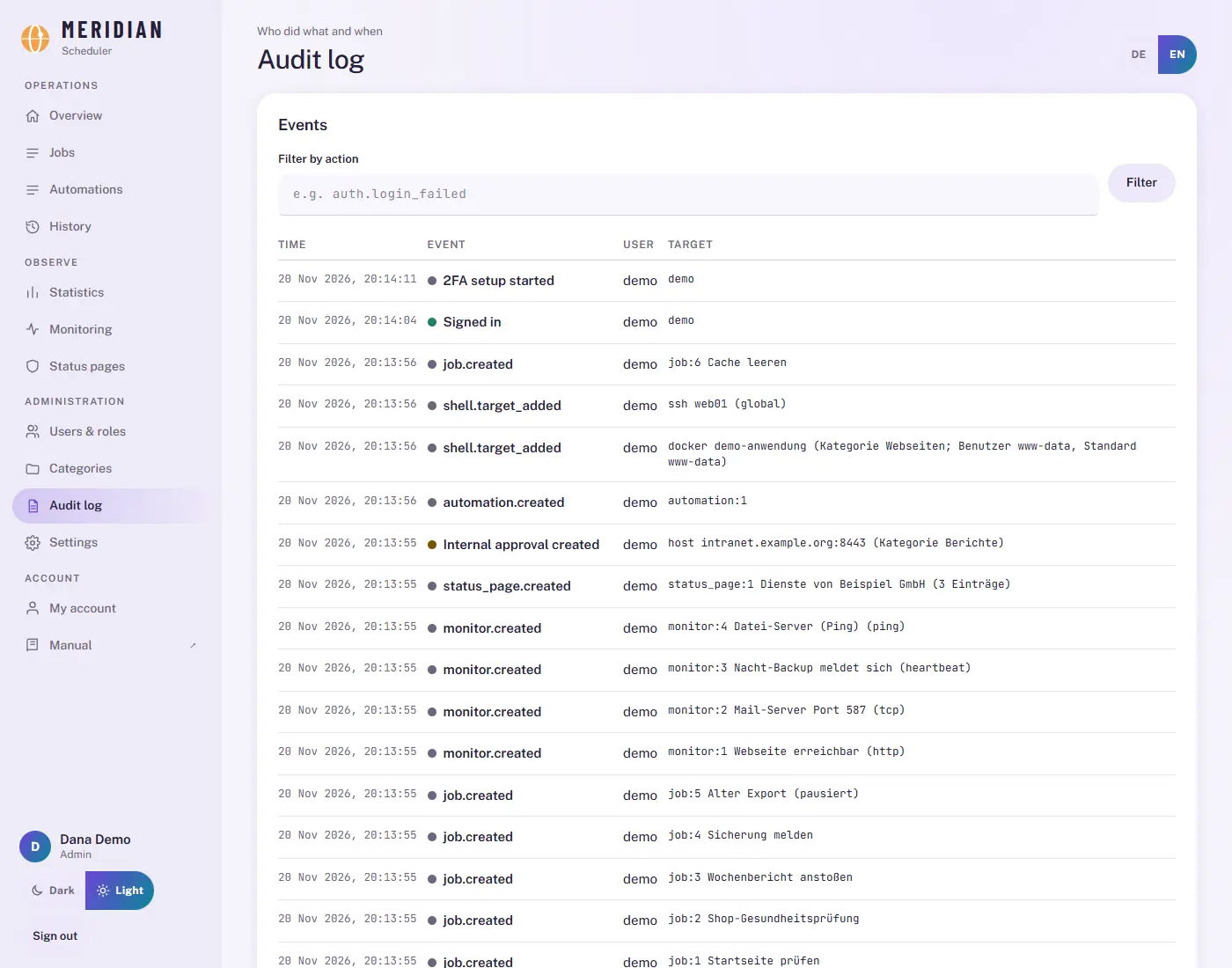
Reading the events
The Events table shows the newest entries first, with Time, Event, User and Target. For events without a user (for example from the command line or before sign-in), it says “not signed in / command line”. The colour of the event shows its kind: failed attempts and locks are clearly marked. You load older events with Load older events.
With Filter by action you narrow the list to one kind of event, for example auth.login_failed (failed sign-ins). Only lowercase letters, digits, dot and underscore are allowed. Filter applies the filter, Reset clears it.
Examples of events:
| Event | Meaning |
|---|---|
auth.login_failed | A sign-in failed. |
user.created | A user was created. |
job.source_viewed | Someone fetched stored values of a job in plain text (only if an administrator has allowed this). |
backup.failed | The automatic backup failed. |
The audit log never contains passwords, tokens or contents of jobs, only who did what. It cannot be changed or deleted in the interface.
Lifting locks
After several failed attempts, Meridian locks an account or an IP address for a while. On the Audit log page you lift the lock at once: enter what is locked in the Username or IP address field and click Lift lock. For a single user you can also do this on their page under Sign-in lock (Users and roles).
Settings
Under Settings (menu, group Administration), administrators control how Meridian works and how strict its protection is. On the left, the page has a list of tabs; which ones you see depends on your permissions: Change settings (General, HTTP jobs, Shell jobs, Job editor, Notifications, Updates, Licence), Approve internal targets (Internal targets) and Manage execution locations for shell jobs (Execution locations). Whoever has none of these permissions does not see the menu entry (“You lack the permission for the settings. They are reserved for administrators.”).
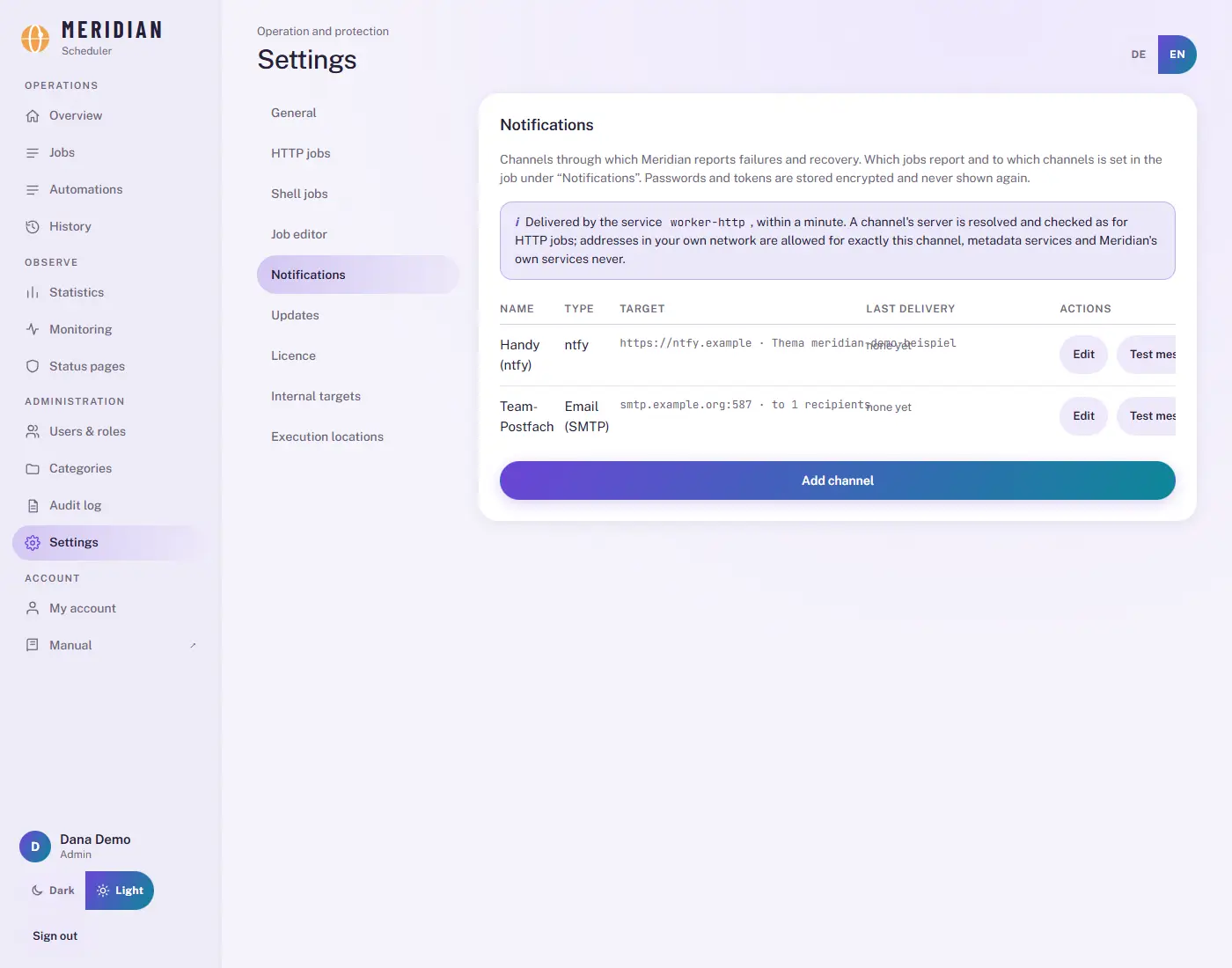
Each setting is a card of its own with the current value. You change the value and click Save; Reset to default restores the default. Changes apply at once (HTTP and shell limits from the next run, without a restart) and are recorded in the audit log. A card shows what is Default, Current and Changed.
Settings that weaken protection require the dangerous permission and are logged. There is no setting that reveals secrets, except the explicitly switched-on display in the job editor (see below).
General
Details that Meridian needs about itself:
- Session duration: how long a sign-in lasts. Default: 2 hours without activity, at most 12 hours. With a number from 1 to 365, the sign-in lasts that many days; 0 means it never expires. Long sessions are convenient, but a stolen cookie is then valid just as long. Set it frugally; users can end their own sessions under My account.
- Smallest interval of fixed intervals: how small the interval “Every n seconds” may be when a job is saved. Short intervals put a load on Meridian and on the target and create many runs in the history.
- Retention of individual runs: how many days individual runs with output and live log stay in the history. Older runs are summed up into daily values per job and deleted: the statistics remain, output and details do not. A shorter time deletes older runs in the next pass (within 10 minutes) and cannot be undone.
- Address of Meridian: the address under which you open Meridian in the browser, for example
https://meridian.example.org. It is needed for the link to the job in notifications and for the licence.
HTTP jobs
Global limits for all HTTP jobs:
- Highest time limit of a job: an upper limit in seconds (1 to 3600) that an HTTP job may choose as its time limit. A job with a higher value runs only up to this maximum.
- Store responses in history: Off (jobs that choose “As global” store nothing), On (they store the response) or Never (enforces “do not store” for all jobs).
- Path in the URL display: Always hide (default: only protocol, host and port appear) or Automatic (simple paths stay visible, possible secrets are replaced by
••••; a secret that looks like a simple lowercase path can stay visible). - Host in the URL display: Automatic (default: the host stays visible) or Always hide (host and port appear nowhere any more, not even for administrators, and the output of new runs does not mention it either).
“Always hide” tightens existing jobs at once: their stored displays are shortened. Switching back to “Automatic” does not loosen anything retroactively: displays that have already been shortened do not come back; only requests saved anew show more.
HTTP jobs and shell jobs run in separate workers. The number of simultaneous runs is set when the workers start, not here.
Shell jobs
Global limits for all shell jobs: Highest time limit of a shell job (upper limit in seconds, 1 to 86400, default 3600). Who may use shell jobs and where they run is governed by the permission Edit shell jobs and the execution locations.
Job editor
The setting Show stored scripts and links in the editor decides whether the job editor shows the URL, headers, body, script and environment variables of a saved job in plain text:
- Off (default): stored values appear nowhere. In the editor there is only Replace request or Replace script.
- On: whoever may edit a job sees the stored values in plain text when they open the editor. Observers and users without edit permission for the category never do.
Warning: whoever may edit can then see secrets in plain text: tokens in URLs, header values, scripts and environment variables. Every access is recorded in the audit log as job.source_viewed, at most 60 accesses per user per hour. Leave the setting off if you do not need it.
Notifications
Here you create the channels. This is described in the chapter Notifications and channels.
Internal targets
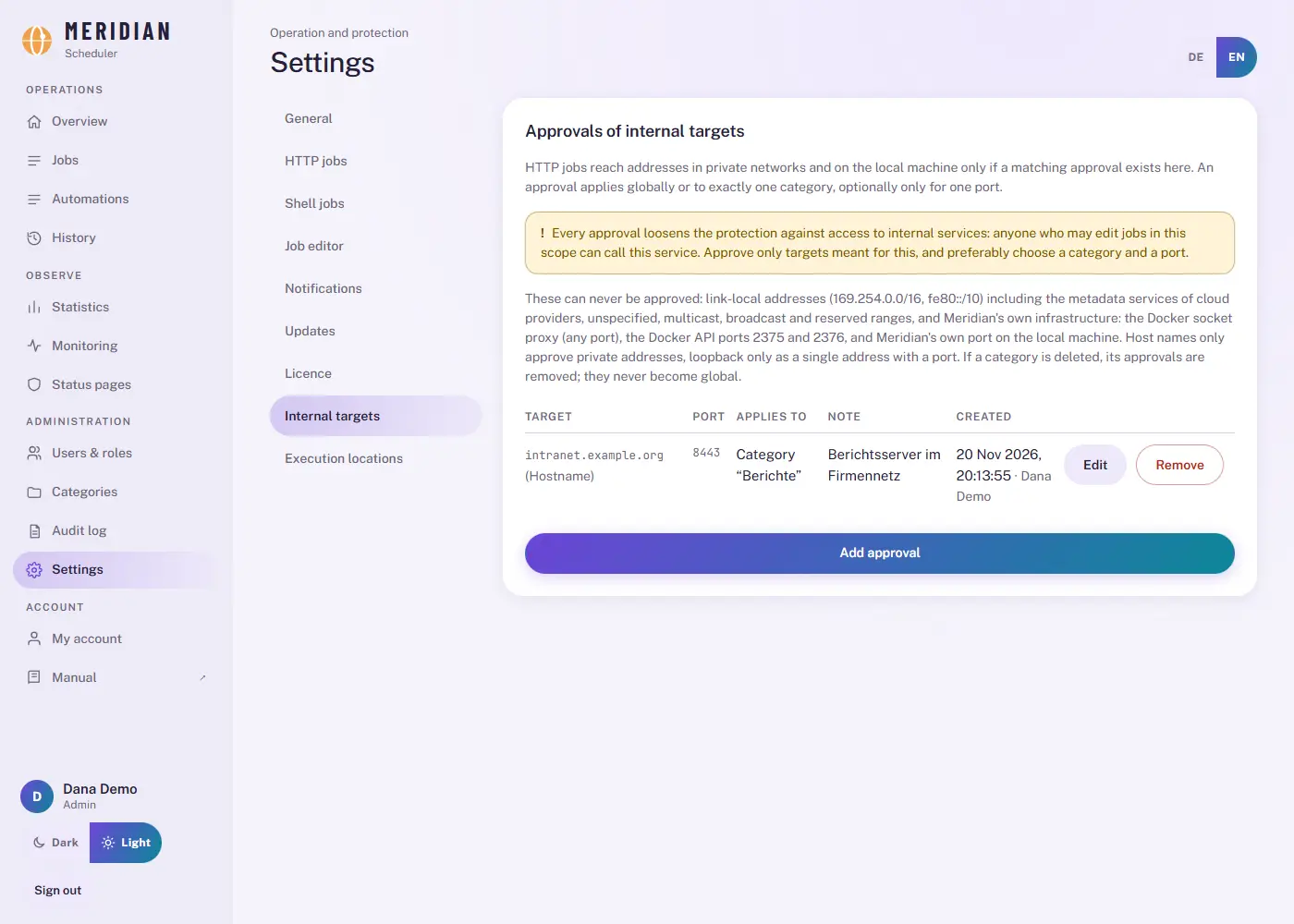
HTTP jobs reach addresses in private networks and on the computer itself only if a matching approval exists here. An approval applies globally or to exactly one category, optionally only for one port. Without approvals, all internal targets are blocked (“No approvals: all internal targets are blocked.”).
- Click Add approval.
- Choose the type: Network (Network or address (CIDR), for example
192.168.10.0/24or127.0.0.1/32) or Hostname (for exampleintranet.example.org). - Optionally enter the Port (empty = all ports; a port is required for loopback).
- For Applies to, choose Global (all categories) or one category. “Global” allows the target for all jobs, including jobs without a category.
- Write a Note (“What is the approval for?”) and click Create approval.
The Approved internal targets table shows Target, Port, Applies to, Note and when it was Created. Edit changes it, Remove deletes it after a confirmation. A change applies from the next run.
Every approval weakens the protection against access to internal services: whoever may edit jobs in this scope can call that service. Approve only targets that are meant for this, and choose a category and a port if possible. Never approvable are link-local addresses including the metadata services of cloud providers, unspecified, multicast, broadcast and reserved ranges, and Meridian’s own services.
Execution locations
The Execution locations tab is described in the chapter Shell jobs and execution locations. It appears only if a kind of execution location can be used on the system.
Updates and licence
The Updates and Licence tabs are described in the chapter Updates and licence.
Updates and licence
This chapter is for administrators. It explains how you update Meridian (tab Updates) and how the licence works (tab Licence, the lock page and the key field). You find both tabs under Settings and need the permission Change settings for them. How an update works technically is described in the operations manual (docs/BETRIEB.md).
The Updates tab
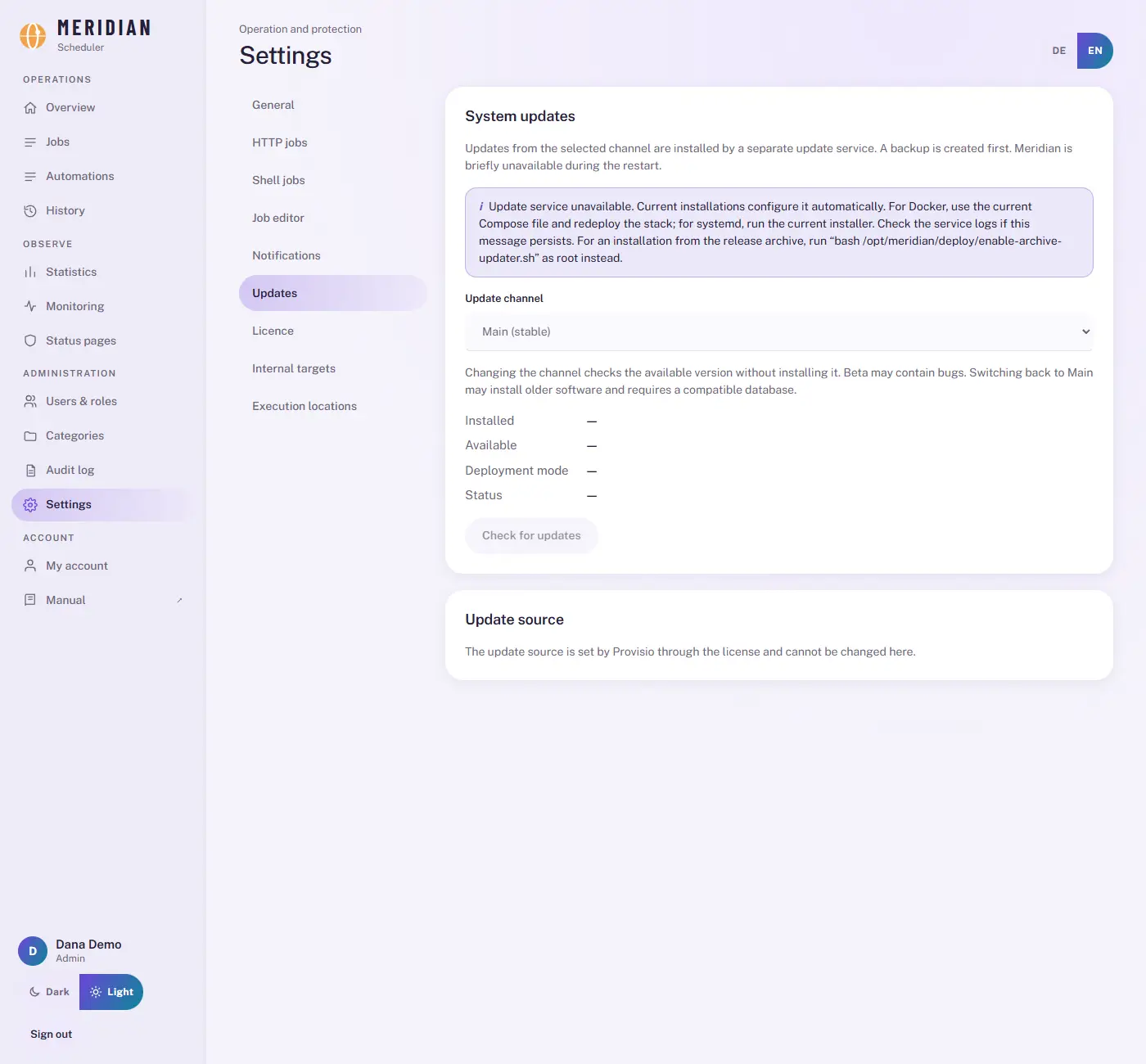
The System updates card shows the Installed and the Available version, the Deployment mode and the Status. A separate update service installs updates from the chosen channel. Before that, it makes a backup. During the restart, Meridian is briefly unavailable; the page then reconnects by itself. A dot next to Settings in the menu shows that an update is ready.
- Click Check for updates to find out the available version.
- Click Update now. Running jobs are stopped, data and keys are backed up and Meridian is restarted. Meanwhile the interface is briefly unavailable.
- The page shows “Update installed successfully.” as soon as everything is done. If it fails, it says “Update failed.” with the reason; Meridian then restores the previous state.
If the update service does not answer, the page says “Update service not reachable.” with a note on what the operator has to do (take over the current Compose file and redeploy, or run the installer again).
Update channel
With Update channel you choose which versions Meridian offers: Main (stable) or Beta (preview). Changing the channel only checks the available version and installs nothing yet. Beta can contain bugs. Switching back to Main may install older software; a compatible database is required for this. You can choose the channel at any time, even if the source is set by Provisio.
Update source
The Update source card shows where Meridian gets updates: the Provider, the Repository or the GitLab address or the Image registry. If the source is Set by Provisio, it comes from your licence: it is binding, you do not change it here and you do not enter a token either. The card shows only what is set (Branch (default from Provisio), Token set, Switched by Provisio on); Meridian never shows an access token.
If the source is not set by Provisio, the operator sets it up on the server (docs/BETRIEB.md, “Update-Quelle und Zugriffstoken”).
Release signature
The Release signature card shows whether Meridian checks the authenticity of a new version: “Latest version: signature valid.”, “no signature found.” or “signature invalid.” With the signature requirement switched on, Meridian installs only versions with a valid release signature. You switch it on with Switch on signature requirement and your password (Current password). It cannot be switched off again in the interface, only on the server. For an installation from the archive, the check is always active.
Hosted systems: update with one click
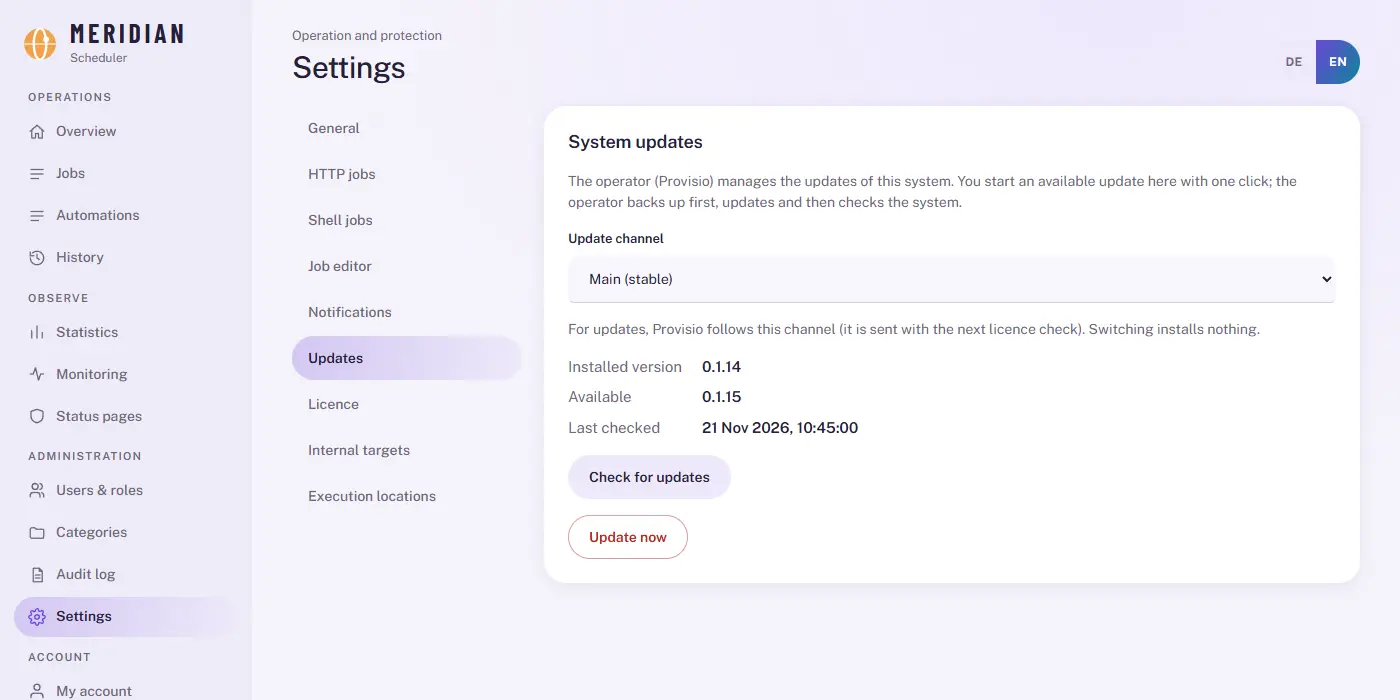
If Meridian runs as a hosted system at Provisio, the operator performs the update: it backs Meridian up, deploys the new version, checks afterwards that everything runs, and goes back to the previous version if something fails. As an administrator you start it yourself whenever it suits you. The System updates card shows the sentence “The operator (Provisio) manages the updates of this system.”, the Update channel, the Installed version and the Available version (“no newer version” if you are up to date). You still choose the channel yourself, from the list the operator provides: always Main (stable), usually also Beta (preview), and possibly further channels with the operator's label. When you choose, Meridian saves the channel and checks right away (the same check as Check for updates, “Checking …” is shown meanwhile); afterwards the page shows the versions of the new channel. If the check is not possible right now, the channel stays saved and is sent to the operator with the next check. Switching installs nothing by itself.
If a newer version exists, Update now appears. After a confirmation (“Meridian will be backed up and updated to …. The interface is briefly unavailable in the meantime.”) Meridian requests the update from the operator. Below you see the progress: “Requesting the update …”, “Creating a backup …”, “Installing the update …”, “Running the health check …” and “Checking Meridian …”. During the restart the interface is briefly unavailable; the page then shows “The system is restarting …” and reconnects by itself. At the end it briefly says “Update installed. The page is reloading …”, the page reloads itself after one or two seconds (so the new interface runs), and the message “Update installed successfully.” disappears by itself after a few seconds; it does not appear again when you open the page later. You see the new version. If the update fails, it says “The update failed. Meridian keeps running on the previous version.” with a short message from the operator.
When idle, Meridian asks the operator for the state about every 15 minutes, so a new version appears here by itself after a quarter of an hour at the latest, without you having to do anything. Below the version, Last checked shows the time of the last successful check. Check for updates asks right away; it is the same check as Check now on the Licence tab (same permissions, same limit), and afterwards the page reloads the state. If the button is missing, the reason is shown below it: “Meridian is up to date.”, “The operator has not released a new version yet.”, “The system is not active; an update is not possible right now.”, “This system cannot be updated.”, “The operator has paused updates.” or “The operator has not allowed updating this system yourself.” (then only the operator updates; you see the installed version and the channel). For any other reason it says “Updating is not possible here.” While an update is running there is no second button. If the operator has reported nothing new for more than 30 minutes, it says “The update is taking unusually long. The operator has been informed.” (not an error; the page keeps asking). If the operator answers the click by saying there is nothing to do or an update is already running, only a note appears as well, for example “An update is already running or waiting.”; if it rejects the request because the licence or address does not match, it says “The operator has rejected the request.” The cards Update source and Release signature and Check for updates are missing on hosted systems: you do not have to set anything up. Only administrators (settings permission) see the card and can start the update; every request appears in the audit log. Whether your system is hosted is decided by the operator in the environment; you do not change it in the interface.
The Licence tab
Meridian checks with the operator whether a valid licence exists for this installation. The Licence tab shows the State:
| State | Meaning |
|---|---|
| Active | The licence is valid. |
| Grace period | The licence server could not be reached. Meridian keeps working as long as the last confirmation is not older than a set period (7 days). As an administrator you then get a notice and a dialog to enter the key. |
| Locked | Without a valid licence, Meridian is locked: scheduler, workers and monitors rest. |
| Would be locked (observation mode) | Only for development versions. |
Below that you see the Domain the licence is valid for, the Reason in case of a problem, Valid until (or unlimited), the information about Updates (until which date you get updates, or “Update support has ended, licence still valid”), the Key (only as set), the Last successful check, the Last error and the Licence server. How many domains the licence allows is shown there as “Domains: x of y” if the operator reports it.
- Check now asks the licence server at once.
- Activate domain registers the current address of Meridian. This uses up one licence slot (“Activation uses up one licence slot. Continue?”). If the address of Meridian changes, the new domain is not activated automatically.
- Enter key stores a licence key (Licence key) with your password and checks it at once (Save and check key). The key is only stored and never shown again.
- Renew licence and Manage licence lead to the operator’s page.
If the operator sets the key itself (from a file or the environment), it says “The licence key is set by the operator.” and you cannot enter one of your own. If your system has a licence that is not confirmed regularly, it says “This licence is not confirmed with the server regularly.”
The lock page
Without a valid licence, Meridian shows the page Meridian is locked with the reason when you open it. Sign-in is then not possible. On the page you can:
- enter the key from Provisio or from the licence email in the Paste licence key field (for example
MER26-XXXX-XXXX-XXXX-XXXX), - click Check and activate key,
- or renew the licence with the operator through Renew or manage licence.
Right after the start, the page briefly shows “The licence is being checked.” and opens Meridian by itself as soon as the licence is confirmed. If the public address of the system is missing, the page says so, because without it no activation succeeds: the operator enters it on the server. If the operator sets the key itself and no answer comes, the page says that you should check whether the background service is running. With a locked licence, public status pages stay reachable (with the note “Data not up to date”); ping addresses do not answer.
After you submit it, the licence key is removed at once from the input field and from the memory of the browser and is never shown again. Meridian sends to the licence server only a fixed, short list of details (key, domain, version and counters), no names and no contents of jobs, runs or users.
Backup and restore
Meridian backs up its data by itself and can restore it from a backup. This chapter explains what you need to know about it. There is no page for it in the interface: backing up and restoring run on the server with commands that an operator runs. The exact commands for Docker and systemd are in the operations manual (docs/BETRIEB.md, “Sicherung” and “Wiederherstellung”).
What is backed up
A backup contains the database: jobs, runs and history, users, roles, categories, channels, automations, monitors, status pages and the settings. Encrypted values (addresses with credentials, headers, scripts, passwords of channels, 2FA keys) are in it only in encrypted form.
The master key does not belong in the backup. Without the master key, all stored secrets are unreadable, including those in a backup. The key is deliberately kept apart from the backups. Put it in a safe place once right after installation (password manager, vault), separate from the backups. If you lose it, even the best backups will not get your secrets back; you would have to enter them again.
Automatic backups
The scheduler makes a backup every day and keeps the newest seven (adjustable by the operator). While Meridian is running, the running file is never copied; a checked extract is made instead. If something fails, there is no backup rather than a broken one. If the automatic backup fails, the audit log shows an event backup.failed. Check the audit log for it now and then.
Before every update through the interface (Updates), the update service also makes a backup of its own.
Where backups belong
By default, backups are on the same disk as the database. This protects against operating mistakes, but not against the loss of the disk. So copy them regularly to another place, for example to another computer or a NAS.
Restoring
- Stop Meridian.
- Provide the right master key: a backup belongs to the key it was made with. Meridian checks this before the first write and changes nothing if it does not match.
- Restore the backup with the command
backup:restore. You give only the file name from the backup directory, never a path. - Start Meridian again. The previous state is kept as a backup with the suffix “vor-wiederherstellung”. The restore appears in the audit log as
backup.restored.
When you move to a new computer, put the old key file in place first and restore the backup afterwards. Without the key file, the command aborts as soon as the backup contains encrypted values.
A restore sets everything back to the state of the backup: runs, changes and new users since the time of the backup are gone. The sessions and signed-in users are also back to the state of that time.
Troubleshooting
This chapter helps when something does not run the way you expect. The history answers most questions: open the last run of the job and read the output and the note. What you cannot solve yourself usually belongs to the operator of the system; the technical side is described in the operations manual (docs/BETRIEB.md).
A job does not run, or not as planned
| Observation | Possible cause and what you can do |
|---|---|
| The job does not appear under Next runs | It is disabled (on the detail page, Enable), its schedule has expired (“expired, no further runs”) or it has no schedule of its own (“Automation only”). Meridian itself may also have disabled the job after several failures (Job editor). |
| Runs stay in the state waiting | The background service (worker) is not running or is overloaded. A run with a long time limit can hold up other runs, because runs run one after another. Tell the operator if it takes longer than a few minutes. |
| Appointments show as skipped in the history | The job was still running (rule If the job is still running: Skip the new run), or the appointment was missed and Catch up a missed run (once) if the scheduler was not running at the time is off (Missed runs). |
| The job runs at the wrong time of day | Check the Time zone of the job and the Next runs preview (Schedules). At the daylight saving changeover, appointments in the skipped and in the doubled hour behave in a special way. |
| Nothing runs any more, the interface shows “Meridian is locked” | The licence is not valid. See The lock page. |
| Meridian reports “being updated” | An update is running right now. Wait a few seconds; the page then reconnects by itself. |
An HTTP job fails
| Observation in the run | Possible cause and what you can do |
|---|---|
| failed with a status code (for example 401, 403, 404, 500, 503) | The server answered with a code that you did not allow under Expected status codes. 401 and 403 usually mean that credentials or the token in the header are missing or have expired. Replace the request with Replace request. |
| time limit exceeded | The target answers too slowly. Raise the Time limit in seconds (at most the upper limit in the settings) or check the target. |
| Connection not possible or certificate error | Meridian always checks the certificate of the target and never switches the check off. An expired or wrong certificate must be fixed at the target. With Warn me before the target’s TLS certificate expires you will be told in advance in future. |
| The target is in your own network or on your own computer and is refused | Internal targets are blocked until an administrator has approved them (Settings, Internal targets). Metadata services of cloud providers can never be approved. |
| Too many redirects | Raise Follow redirects (0–5) or enter the address that is redirected to. |
A shell job fails
- The Exit code in the run is that of the script. Anything other than 0 means an error; read the output.
- If the execution location says “Execution target not available”, the type is no longer set up on this system or the location was removed. Choose another one or ask the operator.
- For containers, the container must be running and the name must be exact. For SSH, check the server key and whether Meridian’s public key is entered on the server (SSH server).
- If a secret showed up as
••••in the output, that is intended: Meridian hides known secrets.
No notification arrives
- Does the job (tab Notifications) have Notify me when a run fails switched on, and does Notify about … apply to an existing channel?
- Trigger a Test message on the channel (Channel list). The Last delivery column shows the result.
- A failure counts only when no retry follows, and it is reported only after the set number of failures in a row, once per series.
- For email, check server, port, encryption and the recipients (job, category or channel).
- Browser notifications need HTTPS and the permission in the browser (Browser notifications).
Sign-in and account
| Observation | What you can do |
|---|---|
| Sign-in no longer possible after several failed attempts | Meridian locks the username and address for a while. Wait a few minutes or ask an administrator to lift the lock (Lifting locks). |
| The 2FA app is gone | Sign in with a recovery code (each works once). If you no longer have those either, an administrator resets your 2FA (Users and roles). |
| Forgotten password | An administrator creates a one-time password for you. You then set one of your own. |
| A menu item or button is missing | Your role has no permission for it, or the category does not apply to you. Ask an administrator (Roles and permissions). |
| “Sign-in not possible: reverse proxy not set up” | An error in the setup of the server. Only the operator can fix it. |
| You are signed out without doing anything | The session has expired (Session duration), or someone ended your session. |
If you need help
Tell the operator what you did, which message appeared and at what time. Never mention passwords or tokens; Meridian does not show them anyway. The audit log and the history of the job show what happened at that time.